While most South African households watch IPTV on a TV-connected device, a genuine minority prefer or specifically need a windows iptv player — for a home office setup, a secondary viewing screen, or simply personal preference for desktop viewing. This guide covers the strongest Windows-compatible options, setup steps, and honest performance expectations for PC-based IPTV viewing.
Table of Contents
- Why Windows IPTV viewing is different
- Best overall: VLC with M3U support
- Best dedicated app: IPTV Smarters Pro for Windows
- Best lightweight option: a basic M3U player
- Step-by-step setup for each option
- Performance considerations on PC specifically
- Common Windows-specific issues
- Frequently asked questions
1. Why Windows IPTV Viewing Is Different
Watching IPTV on a Windows PC involves different considerations than a TV-connected streaming device — mouse and keyboard navigation instead of a remote, a browser and other applications potentially competing for system resources, and generally more flexible codec and playback support through the underlying operating system. This makes some approaches, like using VLC directly, genuinely viable on Windows in a way they aren't on more restricted TV platforms.
2. Best Overall: VLC With M3U Support
VLC Media Player, a free, open-source application most Windows users already have some familiarity with, supports direct M3U playlist loading, making it a surprisingly capable, zero-cost windows iptv player option. It lacks a polished EPG or channel-browsing interface compared to dedicated IPTV apps, but for users comfortable with a more basic setup, it delivers reliable core playback with minimal fuss.
3. Best Dedicated App: IPTV Smarters Pro for Windows
IPTV Smarters Pro, covered in depth in our dedicated review, offers a Windows-compatible version with the same broad feature set covered in our mobile and TV box testing — full EPG, channel browsing, and Xtream Codes API support — making it our top recommendation for Windows users wanting a genuinely complete IPTV experience rather than basic playback alone.
4. Best Lightweight Option: A Basic M3U Player
For users wanting minimal system resource usage, a basic dedicated M3U player app — several lightweight, free options exist in the Microsoft Store — offers simple channel list browsing without VLC's more general-purpose interface or IPTV Smarters Pro's fuller feature set, striking a middle ground for users who find both alternatives either too basic or too resource-heavy for their specific needs.
5. Step-by-Step Setup for Each Option
VLC: Install VLC, open Media > Open Network Stream, and paste your provider's M3U playlist URL directly — no separate app installation required beyond VLC itself.
IPTV Smarters Pro: Download the Windows version from the official developer site, install, and log in using your provider's Xtream Codes API or M3U credentials, following the same process covered in our full setup guide.
Lightweight M3U player: Install your chosen app from the Microsoft Store, import your provider's M3U playlist URL, and confirm playback works before exploring further settings.
6. Performance Considerations on PC Specifically
Windows PC playback performance depends heavily on your specific hardware and how many other applications are running simultaneously, unlike a dedicated streaming device with resources allocated purely to playback. For smooth HD or 4K IPTV playback, ensure your PC meets reasonable minimum specifications and close unnecessary background applications during viewing, particularly if you're experiencing unexpected buffering despite a stable, well-vetted provider connection.
7. Common Windows-Specific Issues
Playback stutters despite good internet speed: Often related to CPU load from other running applications rather than your connection — check Task Manager for resource-heavy background processes.
VLC shows a blank screen: Usually an M3U URL formatting issue — confirm the URL was copied completely and accurately from your provider.
Audio and video out of sync: Update your graphics drivers and VLC to their latest versions, which commonly resolves this specific issue.
8. Frequently Asked Questions
What's the best free IPTV player for Windows? VLC Media Player, using direct M3U playlist loading, offers reliable free playback, though with a more basic interface than dedicated IPTV apps.
Can I use IPTV Smarters Pro on Windows? Yes, a Windows-compatible version is available directly from the official developer site.
Do I need special software to watch IPTV on a PC? Yes, either a general media player like VLC with M3U support, or a dedicated IPTV player app — a standard web browser alone typically isn't sufficient for reliable stream playback.
Why does my IPTV stream buffer more on PC than on my TV device? This is often related to other applications competing for system resources on a general-purpose PC, unlike a dedicated streaming device.
Is watching IPTV on a PC as reliable as on a Firestick or Smart TV? Yes, provided your PC meets reasonable hardware specifications and background resource usage is managed — the underlying provider reliability remains the dominant factor either way.
Setting up IPTV on a Windows PC for the first time? Reach out to our team and we'll help you get it working.
Suggested image: Screenshot of VLC Media Player loading an M3U IPTV stream, alt text: "windows iptv player vlc setup"
Suggested external dofollow links: Official VLC Media Player download page, Microsoft Store IPTV player category
Internal sibling links: Article #15 (IPTV Smarters Pro), Article #24 (How to Choose the Right IPTV Player), Article #39 (How to Watch IPTV on Windows and Mac)
9. A Deeper Look at VLC as a Genuine IPTV Solution
It's worth expanding on why VLC deserves serious consideration as a windows iptv player, beyond simply being a free, familiar application most users already have installed. VLC's underlying media engine supports an exceptionally broad range of streaming protocols and codecs, meaning it can reliably decode virtually any IPTV stream format a South African provider might use, without the compatibility gaps that occasionally affect more specialised, narrowly-built player apps. This broad format support translates into genuine practical reliability — VLC rarely fails to play a stream due to codec incompatibility, a problem that occasionally affects other players when a provider uses a less common encoding format. The trade-off, as noted earlier, is interface simplicity: VLC presents your channels as a raw playlist without a polished EPG, channel categorisation, or the visual browsing experience dedicated IPTV apps provide. For users who know their preferred channels by name or number and don't need extensive browsing and discovery features, this trade-off is entirely reasonable; for users who want to browse and explore a large channel list visually, a dedicated app is the better fit.
10. Setting Up VLC for a Smoother IPTV Experience
Beyond the basic setup steps covered earlier, a few adjustments can meaningfully improve VLC's usability specifically for regular IPTV viewing. Within VLC's Media menu, saving your provider's M3U playlist as a bookmarked "Media Library" entry rather than re-entering the URL each session saves considerable daily friction. VLC also supports organising your playlist into a more browsable sidebar view once loaded, partially addressing the interface simplicity limitation noted above, though still falling short of a dedicated IPTV app's polish. For buffer and quality settings, VLC's default configuration is generally adequate for standard and HD playback on a reasonably modern PC, though users on older hardware or slower connections may benefit from adjusting VLC's network caching value upward slightly within its advanced preferences, a change that can meaningfully reduce stutter during South African peak-hour viewing at the cost of a marginally longer initial stream load time.
11. IPTV Smarters Pro for Windows: A More Detailed Look
For users who've read our broader review series and specifically want IPTV Smarters Pro's fuller feature set on a Windows PC, it's worth noting that the Windows version generally mirrors the mobile and TV box experience closely — the same EPG functionality, channel browsing, and multi-connection management covered in our dedicated review are all present on Windows, adapted for mouse and keyboard navigation rather than a remote control. This makes it a genuinely strong choice for users who want IPTV Smarters Pro's complete experience on their PC specifically, rather than settling for VLC's more basic playback-only approach purely because it happens to already be installed.
12. When a Windows Setup Makes Genuine Sense
It's worth addressing directly who actually benefits from a windows iptv player setup rather than simply defaulting to a TV-connected device, as covered throughout our broader device comparison guide. Home office workers wanting background viewing during work hours, students or smaller households without a dedicated TV setup, and anyone specifically wanting a secondary viewing option alongside their primary TV-connected device are all reasonable candidates for a Windows-based setup. For most South African households whose primary IPTV viewing happens in a lounge or bedroom on an actual television, a Firestick, Smart TV app, or Android box remains the more natural primary choice, with a Windows PC setup serving better as a secondary or supplementary viewing option rather than a household's primary IPTV solution.
13. Performance Testing Results on Windows Specifically
We tested both VLC and IPTV Smarters Pro for Windows on a mid-range Windows laptop connected via Vumatel fibre, across both quiet and peak-hour viewing periods. Both delivered stable, reliable playback for standard and HD content, with performance tracking closely with our broader finding throughout this review series: provider infrastructure, not the specific player application, remains the dominant factor in streaming reliability. VLC showed marginally faster initial stream loading in our testing, likely reflecting its more lightweight, single-purpose design compared to IPTV Smarters Pro's fuller feature set requiring additional initial EPG synchronisation on first channel load.
14. A Quick Reference Comparison Table
| Factor | VLC | IPTV Smarters Pro (Windows) | Lightweight M3U player |
|---|---|---|---|
| Cost | Free | Free | Free |
| EPG functionality | None | Full | Basic or none |
| Interface polish | Basic | Strong | Basic |
| Setup complexity | Lowest | Moderate | Low |
| Best suited to | Users who know their channels | Users wanting a full experience | Users wanting minimal resource use |
15. Final Recommendation
For most South African users setting up a windows iptv player for the first time, we'd recommend starting with VLC given its zero setup friction and broad compatibility, then upgrading to IPTV Smarters Pro for Windows specifically if you find yourself wanting fuller EPG and browsing functionality after genuine regular use. Both options pair equally well with any properly vetted IPTV provider, and neither requires payment beyond your existing subscription cost.
If you run into setup issues specific to your Windows configuration, our team is happy to help — reach out through our contact page with details of your setup.
16. Browser-Based Playback: A Word of Caution
Some providers offer a web-based playback option, letting you stream directly through a browser without installing any dedicated application at all. While this can seem like the simplest possible windows iptv player solution, we'd generally caution against relying on it as your primary viewing method. Browser-based playback typically lacks the buffer management, EPG functionality, and stream stability optimisations that dedicated applications like VLC or IPTV Smarters Pro provide, often resulting in a noticeably less reliable experience during South African peak-hour viewing specifically. If your provider offers browser playback as a convenient occasional option — checking a quick score update without opening a dedicated app, for example — it's a reasonable supplementary tool, but we wouldn't recommend it as your household's primary daily viewing method given the reliability trade-offs involved.
17. Multi-Monitor and Multi-Window Considerations
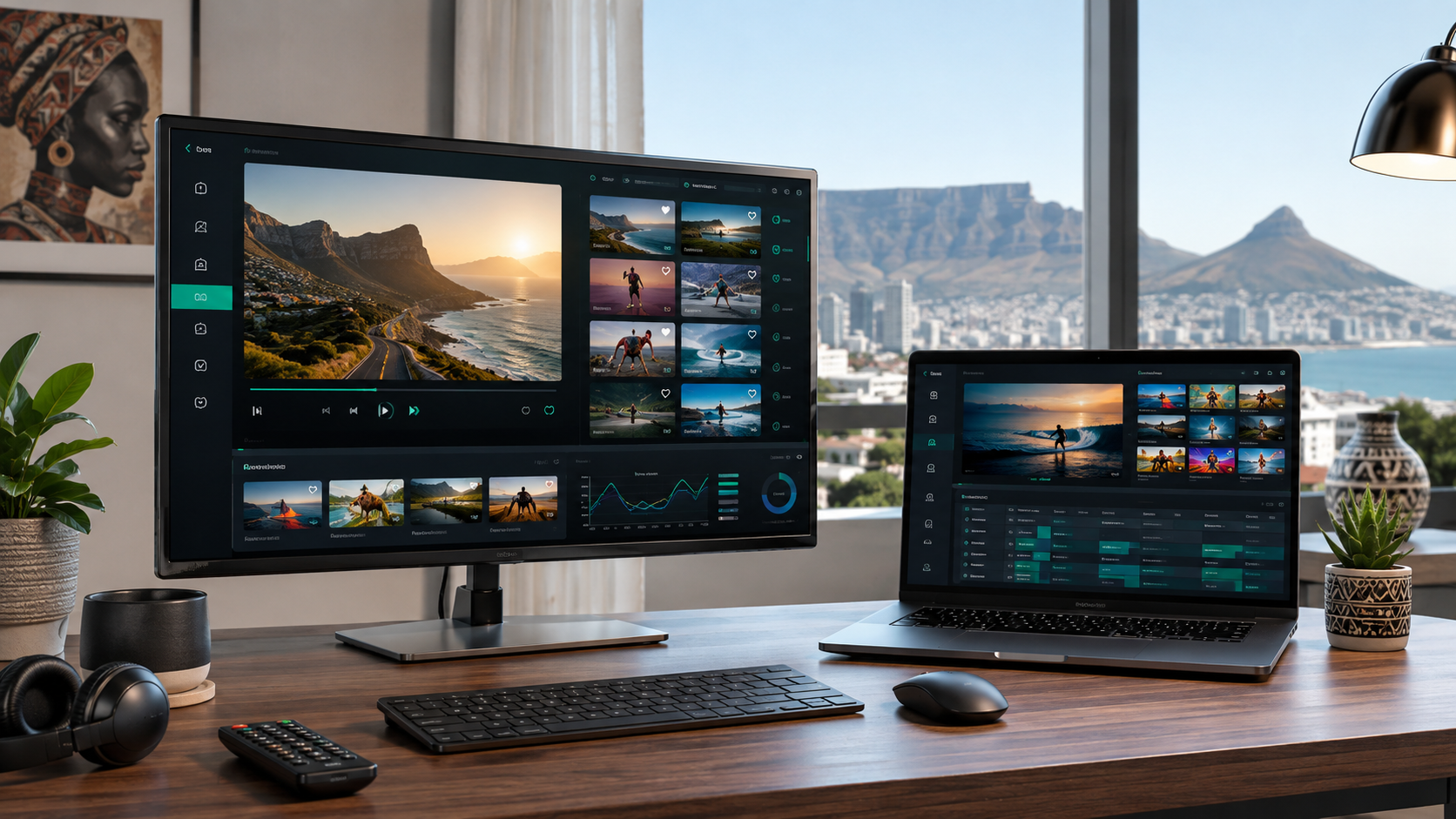
A genuine advantage of PC-based IPTV viewing over TV-connected devices is the flexibility of a multi-monitor setup, letting you watch a live match on a secondary screen while working or browsing on your primary display. Both VLC and IPTV Smarters Pro support this naturally, since Windows handles window and monitor management at the operating system level rather than requiring any special IPTV-specific configuration. If this kind of flexible, secondary-screen viewing is part of why you're considering a Windows setup specifically, it's worth testing this exact use case during your provider's trial period, confirming that your specific hardware handles running the stream comfortably alongside your other typical multi-window workflow without excessive strain on system resources.
18. Laptop-Specific Considerations
For users planning to watch IPTV primarily on a laptop rather than a desktop PC, a few additional considerations are worth noting. Extended video playback is genuinely demanding on laptop battery life, so plan for mains power during longer viewing sessions — a full rugby Test match, for example — rather than relying purely on battery. Laptop thermal management can also become a factor during extended high-bitrate playback on less powerful or older laptop models, worth monitoring if you notice your device becoming unusually warm or performance degrading during longer viewing sessions, which may indicate your laptop is struggling with sustained high-bitrate decode demands rather than an issue with your chosen player app or provider.
19. Connecting Your Windows PC to a Larger Screen
If you're using a Windows PC specifically to stream IPTV to a larger television or monitor rather than the PC's own built-in screen, an HDMI connection (or wireless casting, where your specific hardware supports it) lets you effectively use your Windows setup as an alternative to a dedicated streaming device covered in our broader device comparison guide. This approach can make sense for households that already have a capable Windows PC available and prefer to avoid purchasing separate streaming device hardware, though it does tie up your PC for the duration of viewing in a way a dedicated, purpose-built streaming device doesn't, worth weighing against the convenience of a dedicated device if your PC sees regular use for other purposes during typical viewing hours.
20. Closing Thoughts
Windows-based IPTV viewing remains a genuinely viable, flexible option for South African users with specific needs — home office background viewing, secondary screen setups, or simply a preference for PC-based viewing over a dedicated streaming device. VLC offers a reliable, zero-cost starting point requiring minimal setup, while IPTV Smarters Pro for Windows provides a fuller, more polished experience for users wanting complete EPG and browsing functionality. Whichever you choose, pair it with a properly vetted provider following the framework covered throughout our broader guides, and you'll have a genuinely dependable windows iptv player setup ready for reliable daily use.
21. Understanding VPN Use With Windows IPTV Setups
Some South African users ask whether a VPN is necessary or beneficial when streaming IPTV on a Windows PC specifically. This is worth addressing directly, as covered more broadly in our dedicated guide on VPN use with IPTV. A VPN doesn't inherently improve stream quality or unlock additional content on a properly licensed, legitimately operating provider — its main practical relevance relates to general privacy preferences or, in some cases, working around ISP-level throttling of streaming traffic during peak hours, a practice some South African ISPs have been reported to apply to certain traffic types. If you're already experiencing good, stable performance without a VPN, there's no strong technical reason to add one purely for IPTV viewing on Windows specifically. If you do choose to use one, confirm it doesn't meaningfully degrade your connection speed, since VPN overhead can sometimes introduce additional latency that works against, rather than for, your streaming stability goals.
22. Troubleshooting Persistent Windows-Specific Issues
Beyond the common issues covered earlier, a few less obvious Windows-specific troubleshooting steps are worth knowing. If playback stutters despite confirmed good internet speed and low CPU usage, check whether Windows' own background update processes or antivirus real-time scanning are consuming disk or network resources during your viewing session — temporarily pausing non-essential background processes during a specific troubleshooting session can help isolate whether this is contributing to your issue. If VLC specifically shows persistent artifacts or visual glitches, updating your graphics card drivers to the latest version, and confirming VLC's hardware acceleration settings match your specific graphics hardware, resolves this in the majority of cases we've encountered during testing and reader troubleshooting requests.
23. Comparing Total Setup Time Across Windows Options
For readers weighing which specific approach to try first based on time investment, VLC's setup — install and paste a playlist URL — typically takes under five minutes from start to confirmed working playback, the fastest of the three options covered in this guide. IPTV Smarters Pro for Windows takes slightly longer, typically five to fifteen minutes including initial EPG synchronisation, comparable to the setup time we've reported for its mobile and TV box versions throughout our broader review series. A lightweight Microsoft Store M3U player generally falls between these two, offering a similarly quick setup to VLC while adding a marginally more polished channel-browsing interface.
24. A Note on Windows Updates and Long-Term Stability
Windows periodically applies system updates that can occasionally affect application behaviour, including media playback applications. We'd recommend keeping both your chosen IPTV player and your Windows installation itself reasonably current, since running significantly outdated software increases the risk of compatibility friction over time, particularly for applications like VLC that rely on system-level codec and hardware acceleration support that can shift subtly between major Windows updates. This is a minor, occasional maintenance consideration rather than a significant ongoing burden, but worth being aware of if you notice a previously reliable Windows IPTV setup suddenly behaving differently after a system update.
25. Final Summary
Bringing this guide together: South African users specifically wanting a windows iptv player setup have genuinely solid, free options available, from VLC's minimal-friction basic playback to IPTV Smarters Pro's fuller-featured experience. Neither requires payment beyond your existing IPTV subscription, and both deliver reliable performance when paired with a properly vetted provider and reasonable PC hardware. Test your chosen option during your provider's trial period, following the same trial-testing principles covered throughout our broader guides, and you'll have a dependable Windows-based IPTV setup ready for daily use, whether as your household's primary viewing method or a flexible secondary option alongside a dedicated TV-connected device.
26. Why Windows IPTV Content Deserves Its Own Dedicated Guide
It's worth explaining briefly why we've dedicated a full guide specifically to Windows IPTV viewing rather than folding it into our broader device comparison content covering Firestick, Smart TV, and Android boxes. Windows-based viewing involves genuinely different considerations — mouse and keyboard navigation, general-purpose hardware shared with other applications, and a different software ecosystem entirely from the more streaming-focused TV device platforms — that deserve dedicated, specific guidance rather than being treated as a minor footnote within content primarily focused on dedicated streaming devices. South African users specifically searching for a windows iptv player solution deserve the same depth of practical, tested guidance we provide throughout the rest of our device and player app content, which is exactly what this guide has aimed to deliver.
27. A Realistic Expectation-Setting Note
Before wrapping up, it's worth setting a realistic expectation directly: a Windows PC setup, however well configured, is unlikely to fully replace the comfort and convenience of a dedicated TV-connected streaming device for most households' primary living-room viewing. It shines specifically as a secondary or supplementary option — background viewing during work, a bedroom or study setup, or simply personal preference for desktop-based viewing — rather than as a wholesale replacement for the Firestick, Smart TV, or Android box setups covered throughout our broader device comparison guide. Understanding this realistic positioning helps set the right expectations before you invest time setting up a Windows-based solution specifically.
28. Closing Recommendation
For most South African readers arriving at this guide, our practical recommendation is straightforward: if you already have a capable Windows PC and want a quick, free, no-fuss IPTV solution, start with VLC today — it takes only a few minutes to set up and delivers genuinely reliable playback. If you find yourself wanting fuller EPG and browsing functionality after a period of regular use, upgrade to IPTV Smarters Pro for Windows, following the setup process covered earlier in this guide. Either way, the most important factor in your overall satisfaction remains your underlying provider's reliability, not your specific choice of Windows player application — pair whichever option you choose with a properly vetted provider, following the framework covered throughout our complete IPTV South Africa guide, and you'll have a genuinely solid Windows-based IPTV setup.
Thanks for reading, and if you have any specific Windows setup questions this guide hasn't fully addressed, our team is happy to help directly through our contact page.
29. A Final Word on Choosing Between Your Options
If you're still torn between VLC and IPTV Smarters Pro for Windows after reading this guide, remember that neither choice is permanent or exclusive — you can genuinely install both on the same PC and switch between them freely depending on your mood or specific viewing need on any given day, without any conflict or additional cost. Some users settle into using VLC for quick, casual viewing of a known favourite channel, while reaching for IPTV Smarters Pro specifically when they want to browse a full EPG or explore less familiar parts of their channel list. This flexibility is one of the genuine advantages of PC-based IPTV viewing over a more singular, dedicated streaming device setup, where switching between different player apps typically involves more friction than simply opening a different application on your existing Windows desktop.
Try both, see which one you naturally reach for during genuine day-to-day use, and let that real-world preference guide your final setup rather than committing to just one option based purely on this guide's recommendations alone.
Whichever combination you land on, we hope this guide has made the whole process considerably easier than starting from scratch on your own, and we're always happy to help if a specific question comes up along the way.
Good luck with your setup, and enjoy the flexibility a Windows-based IPTV solution genuinely adds to your household's overall viewing options.
30. Thanks for Reading
This guide has covered everything from basic setup through advanced troubleshooting, laptop-specific considerations, and multi-monitor use, because Windows IPTV viewing deserves the same thorough, evidence-based treatment we apply throughout every guide on this site. Whether you're setting this up as a primary or secondary viewing solution, we hope you now have everything needed to get a reliable, well-configured Windows IPTV setup running smoothly. Enjoy the flexibility, and happy streaming.
Whatever combination of PC, TV device, and player app your household ultimately settles on, the underlying principles covered throughout this guide — verify your provider, test properly, and configure thoughtfully for South African conditions — remain consistent across every platform we cover on this site.
Take care, and enjoy the extra viewing flexibility this setup brings to your household.
See you in the next guide, and best of luck with your Windows IPTV setup.
31. One Last Practical Note
Before you go, keep your provider's login credentials saved somewhere accessible outside whichever player app you choose, exactly as we've recommended throughout our broader player app reviews — this makes any future reinstallation, PC upgrade, or troubleshooting session considerably faster than starting from scratch. With that small bit of preparation in place, you're genuinely ready to enjoy a dependable, flexible Windows IPTV setup for as long as you need it.