Your login details
After payment we email you a username, a password and a server URL. Together these are your Xtream Codes API login, and every app below asks for the same three. Keep the email — you need it again if you change device.
Every device we support, with the exact taps and a screenshot of each screen. Most setups take under ten minutes and need nothing but the username, password and server URL in your welcome email. Pick your device below, or jump to the troubleshooting section if something is already installed and misbehaving.
Sorting these out first turns a fiddly evening into a five-minute job. Every guide below assumes them.
After payment we email you a username, a password and a server URL. Together these are your Xtream Codes API login, and every app below asks for the same three. Keep the email — you need it again if you change device.
Allow 5 Mbps for SD, 10 Mbps for HD, 15–20 Mbps for Full HD and 25 Mbps or more for 4K. That is per stream, so a household watching two channels at once needs double. Most South African fibre lines handle this comfortably; 4G and 5G usually do, ADSL rarely does.
Use a LAN cable if the device has a port. Wi-Fi works, but 2.4 GHz in a full complex is the single most common cause of buffering we see. If you must use Wi-Fi, use the 5 GHz band and keep the device in line of sight of the router.
One subscription streams to one device at a time unless you bought a multi-device plan. Logging in on a second TV while the first is playing is what produces most "maximum connections reached" errors.
Not a customer yet? You need an active subscription beforeany of this works. Our plans start from R108 a month and the login details arrive by email within minutes of payment.
Samsung Tizen and LG webOS televisions run IPTV apps directly — no box, no stick, no extra remote. IPTV Smarters Pro is the quickest route where the store carries it; IBO Player is the fallback on sets that do not, and is activated from a browser instead of the TV keyboard.
The most widely used player, and the one our support team knows best. If your set offers it, start here.
On Samsung this is the Apps tile on the home bar; on LG it is the LG Content Store; on Android-powered sets it is the Google Play Store. Make sure the TV is connected to the internet first, or the store will be empty.
Search for "IPTV Smarters Pro", or "Smarters Player Lite" if the first does not appear. Select it and install. The download is small and usually finishes in under a minute.
Not in the store? Samsung and LG remove and reinstate these apps regularly. Skip to the IBO Player instructions below — it does the same job and installs on nearly every set.
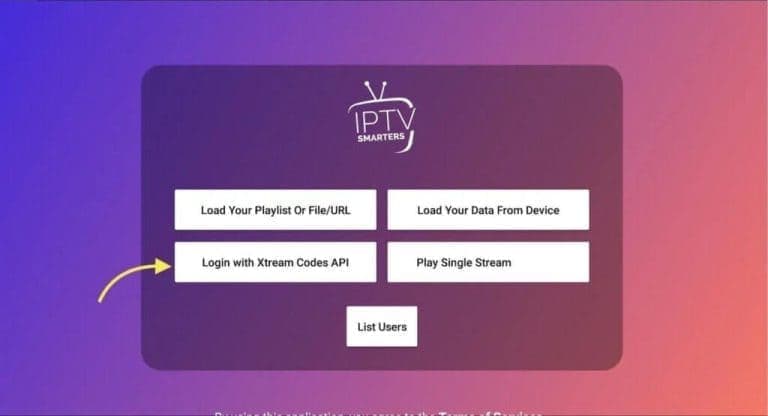
Open the app and pick "Login with Xtream Codes API". Do not choose the M3U URL option unless we specifically sent you an M3U link — the Xtream login gives you a proper channel guide and a working video-on-demand section, and the M3U one does not.
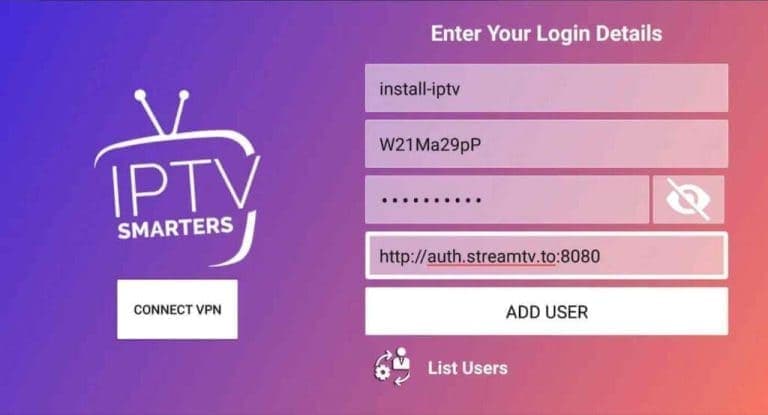
Name the profile anything you like — your own name is fine. Then type the username, password and server URL exactly as they appear in your email, and select Add User. These are case-sensitive.
Typing on a TV remote invites mistakes. If the login fails, the culprit is almost always a capital letter, a confused 0 and O, or a missing http:// on the server URL.
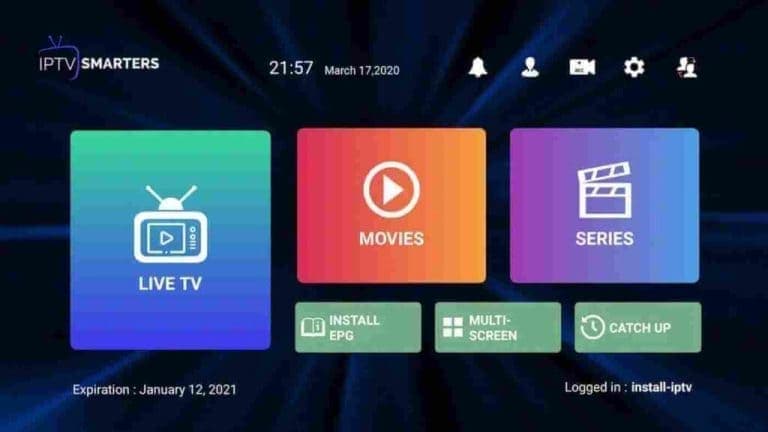
The app pulls down the channels, films and series — usually about ten seconds, occasionally a minute on a slower line. When it finishes you land on the main screen with Live TV, Movies and Series.
Set the EPG to update automatically in Settings so the programme guide stays current without you touching it again.
Available on nearly every Samsung and LG set, and activated from a computer or phone browser — which means no wrestling with the on-screen keyboard.
Search the Samsung or LG store for "IBO Player". If it does not appear on the front page, look under All Apps or Updates. Install it and open it.
On first launch the app shows a Device ID and a Device Key. Write both down exactly — you need them in the next step, and they are specific to that television.
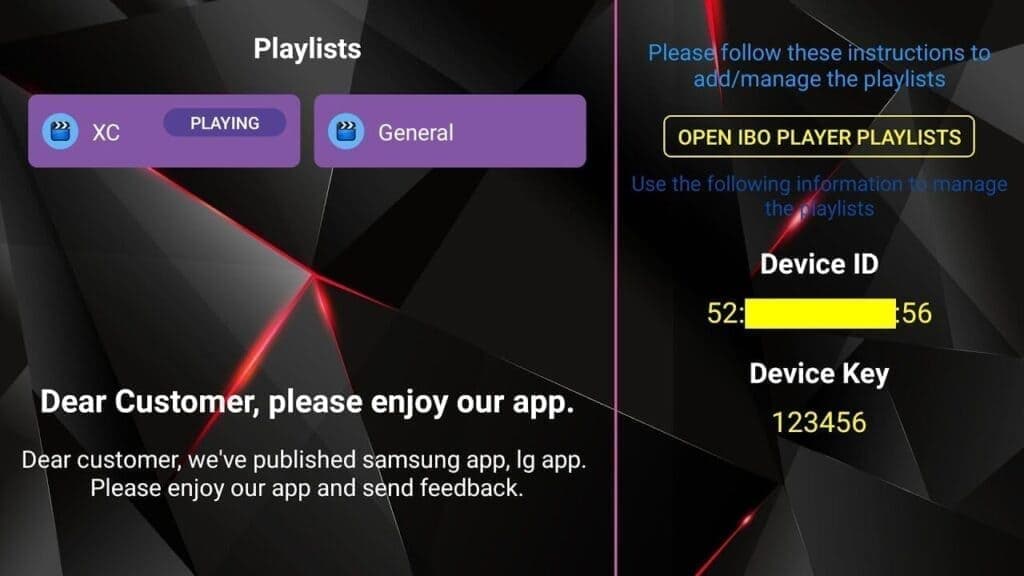
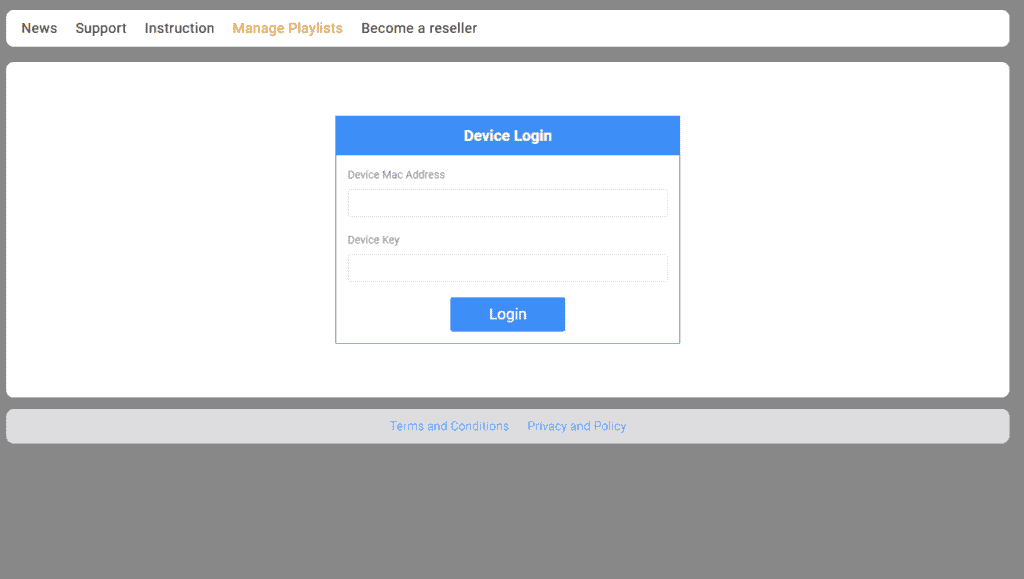
Go to iboiptv.com/device/login in any browser and enter the Device ID and Device Key from the TV screen, then select Login.
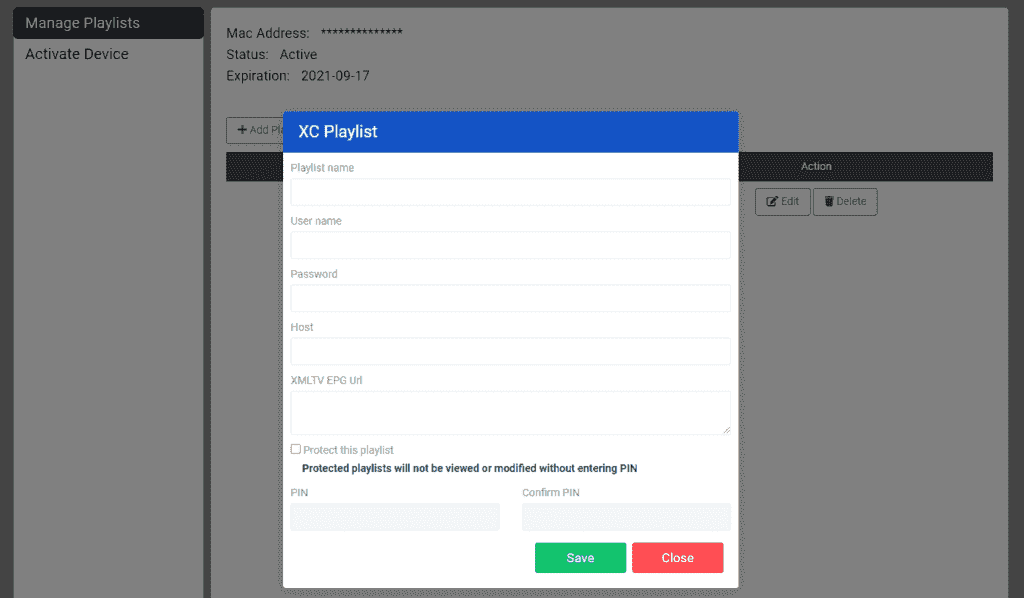
Choose "Add XC playlist" and fill in the username, password and host (your server URL) from your subscription email. Save it.
IBO charges a small once-off activation per device, paid to IBO rather than to us. It is a one-time cost, not a subscription.
Back on the TV, open IBO Player and choose Refresh. Your playlist name appears and the channels load. You will not need the browser again unless you change details.
The simplest setup of the lot. Android phones, tablets, Android TV boxes and Google TV sets all install IPTV Smarters Pro straight from the Play Store, and the same login works across all of them.
One app, five minutes, nothing to side-load.
On a phone or tablet, tap the Play Store icon. On an Android TV box or Google TV, find it on the home row.
Search for "IPTV Smarters Pro", or "Smarters Player Lite" if the first is unavailable in your region, and install it.
Open the app, accept the terms, and select "Login with Xtream Codes API" rather than the M3U option.
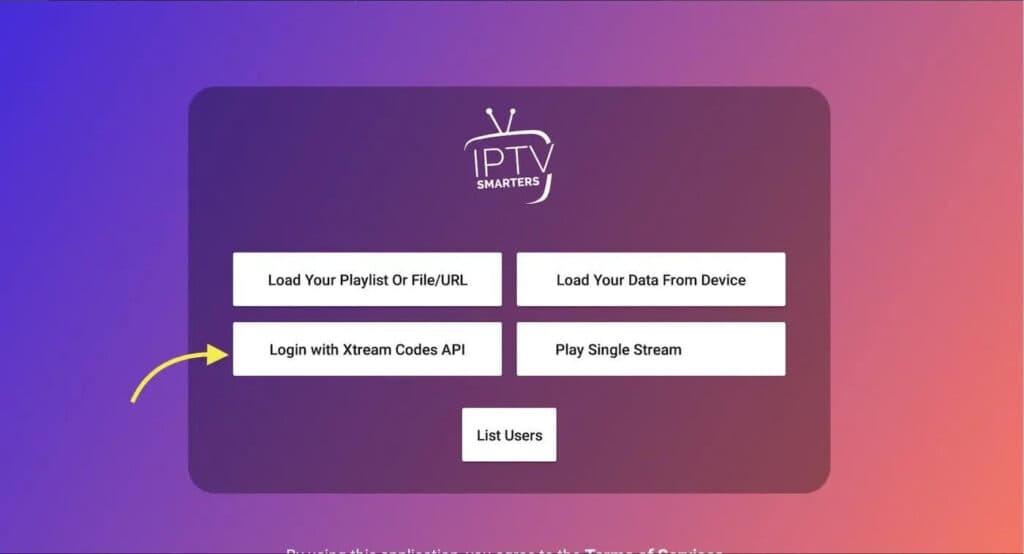
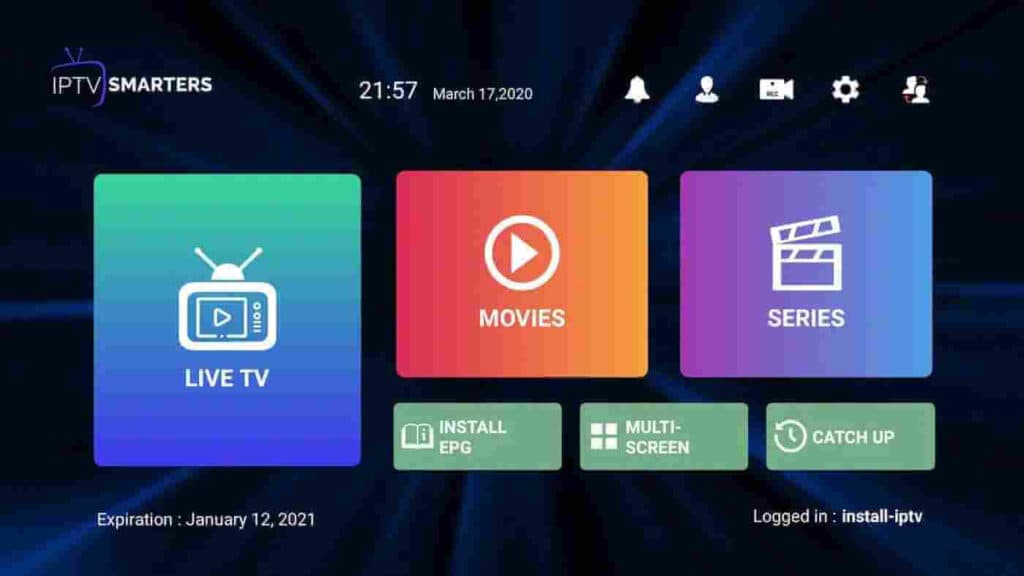
Give the profile a name, then enter the username, password and server URL from your email and tap Add User.
On a phone, copy and paste straight from the email rather than retyping. It removes the most common source of login failures at a stroke.
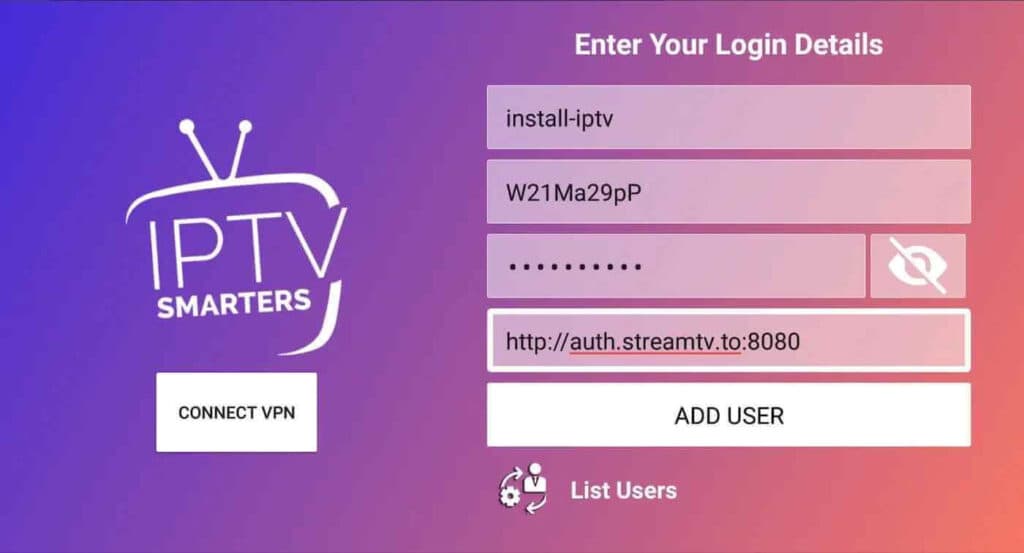
Channels and video-on-demand download for roughly ten seconds and you land on the main screen.
The Fire Stick does not carry IPTV players in its own store, so the app is side-loaded using the free Downloader app. It looks like a lot of steps because each one is small — the whole thing takes about a quarter of an hour, and you only ever do it once.
Amazon blocks browser downloads on the Fire Stick, so Downloader is the tool that fetches the player for you.
From the Fire Stick home screen, go to Find and then Search.
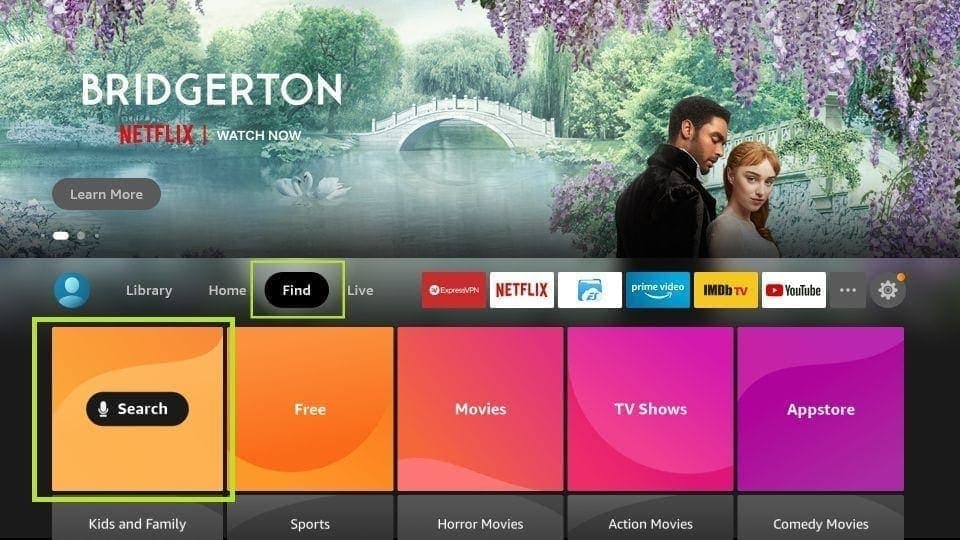
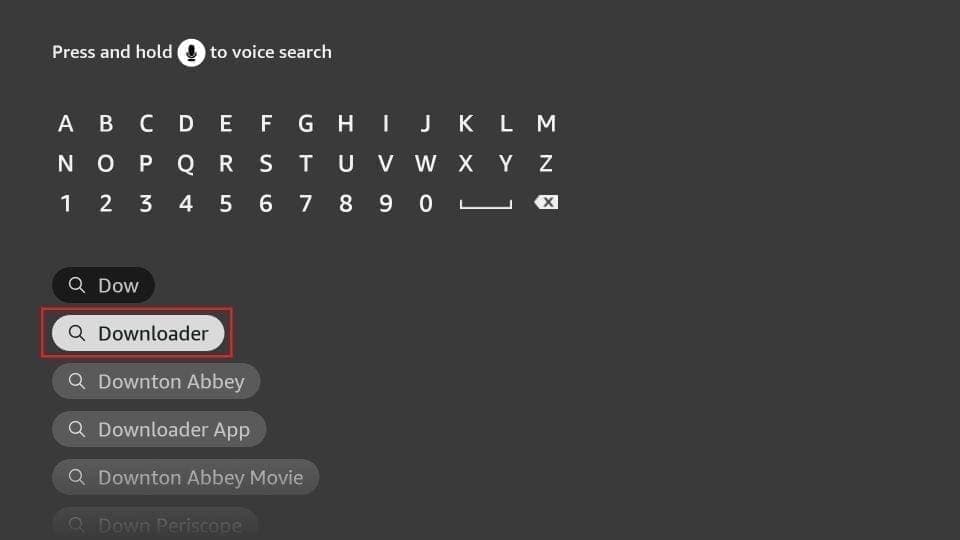
Type "Downloader", select it in the results, and install the orange Downloader icon.
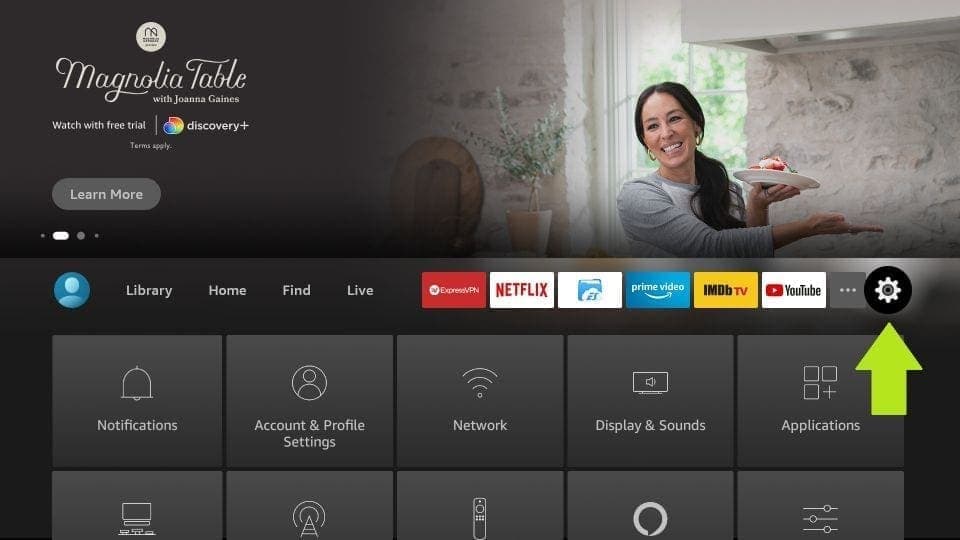
Return to the home screen and open Settings from the top menu bar.
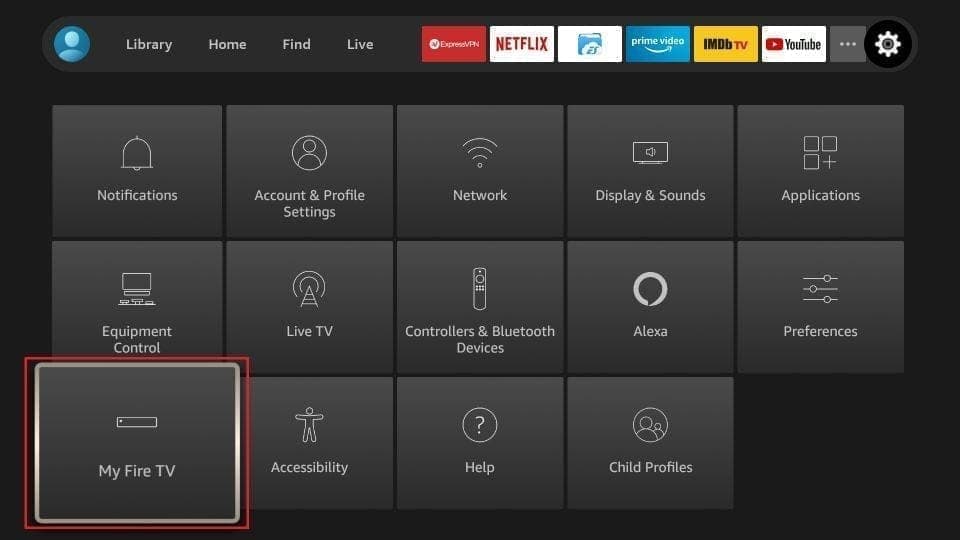
In Settings, choose My Fire TV.
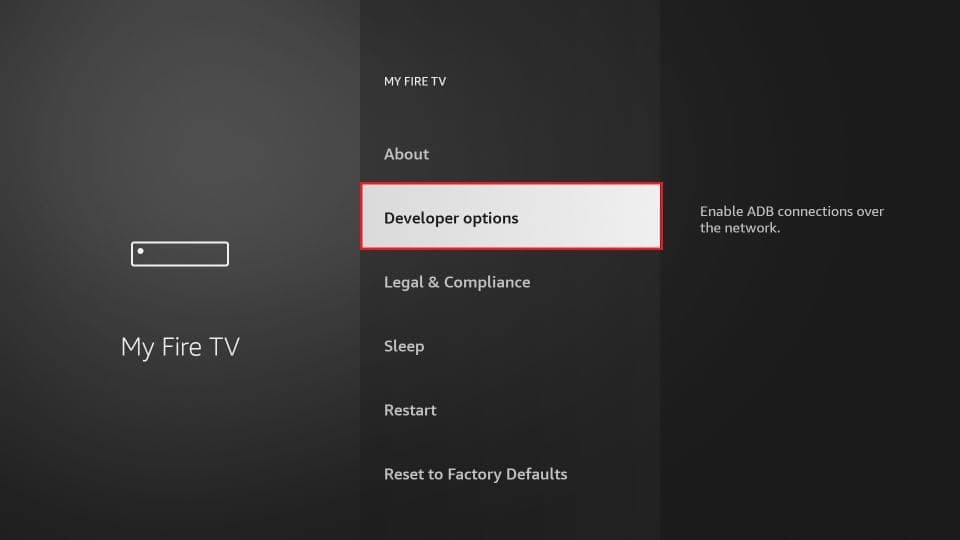
Select Developer Options from the list.
No Developer Options? On newer Fire Sticks it stays hidden until you open About and click the Fire TV Stick name seven times. Then go back and it is there.
Choose "Install unknown apps". Older Fire Sticks call this "Apps from Unknown Sources".
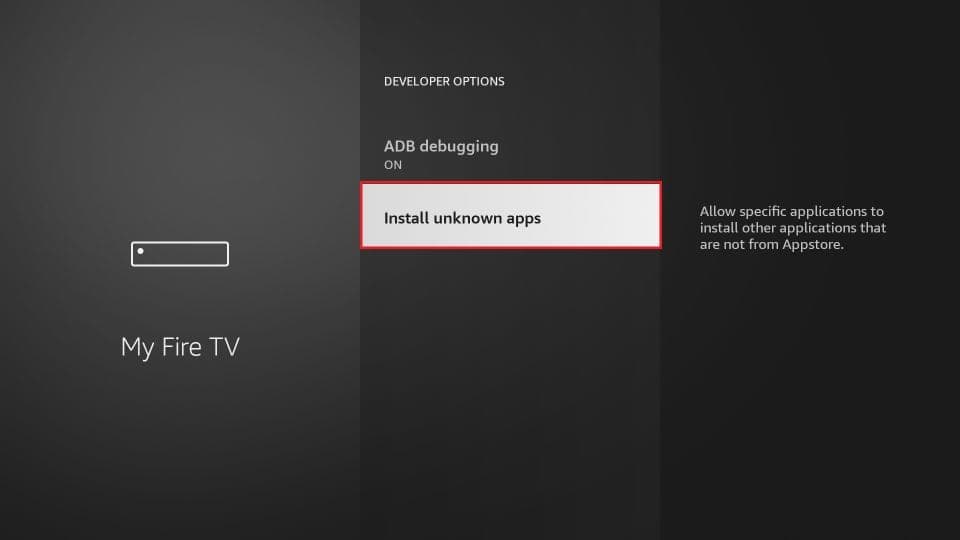
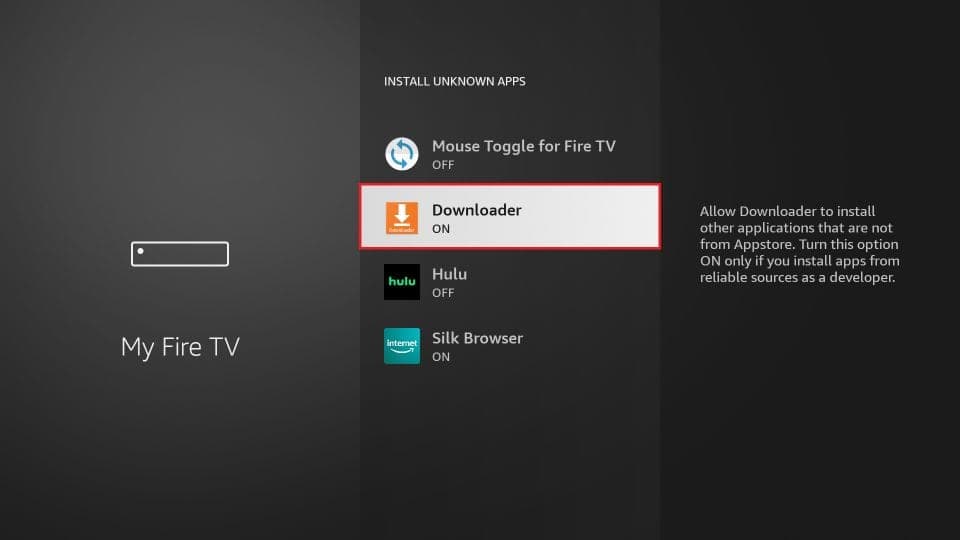
Find Downloader in the list and switch it to ON. This permits that one app to install others — it is not a blanket setting.
Launch Downloader and dismiss the first-run prompts. With Home selected in the left menu, click the URL field on the right that reads http://.
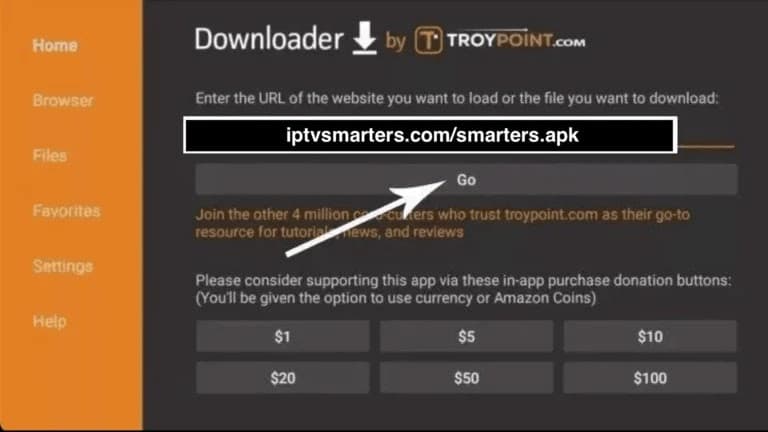
Type the address we sent you for the Smarters installer and select Go. Take care with the characters — a single wrong one fetches nothing.
Not sure of the address? Message us on WhatsApp and we will send the current one. Installer links change when the app updates, and an out-of-date link is a common reason this step stalls.
It takes a minute or two depending on your line speed. A progress bar shows across the screen.
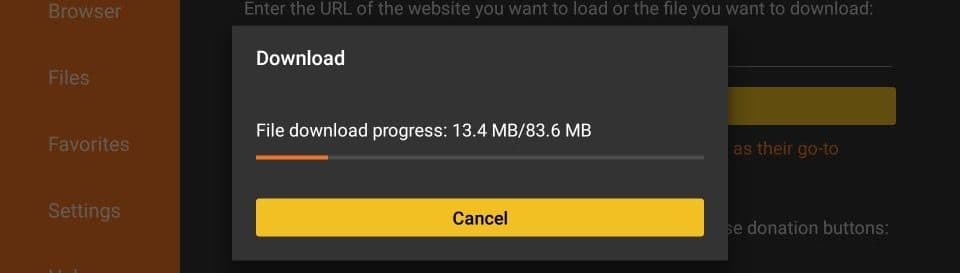
Downloader runs the installer automatically when the file arrives. Choose Install.
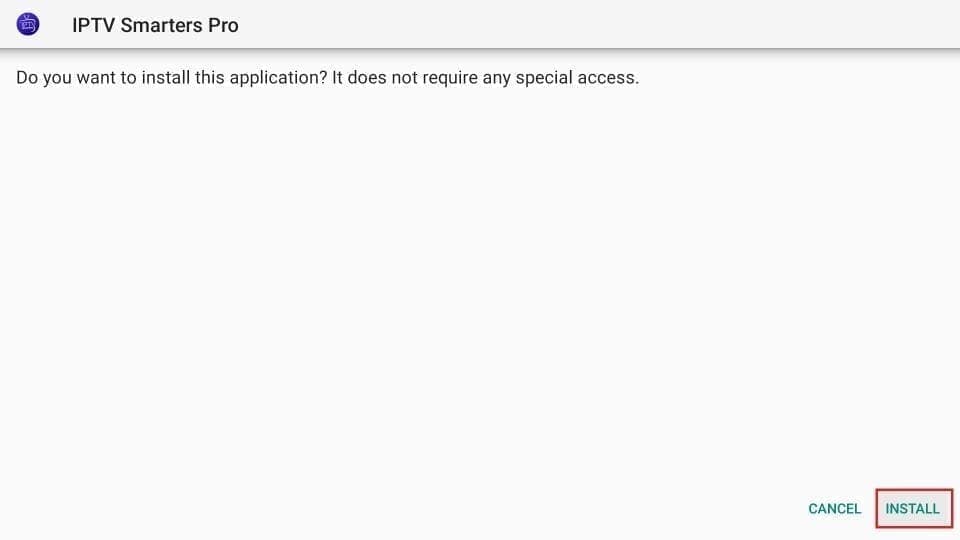
When it finishes, pick DONE rather than OPEN. That returns you to Downloader so you can clear the installer file first.
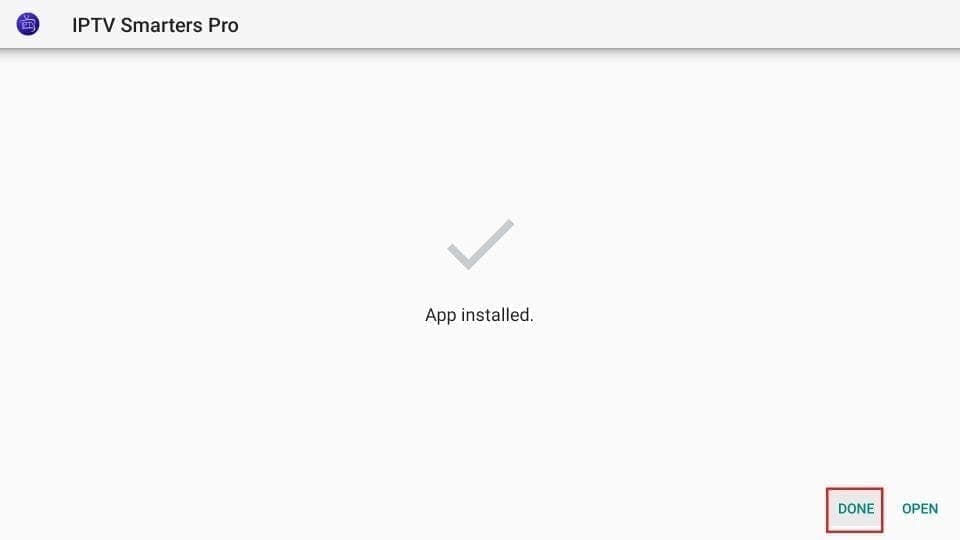
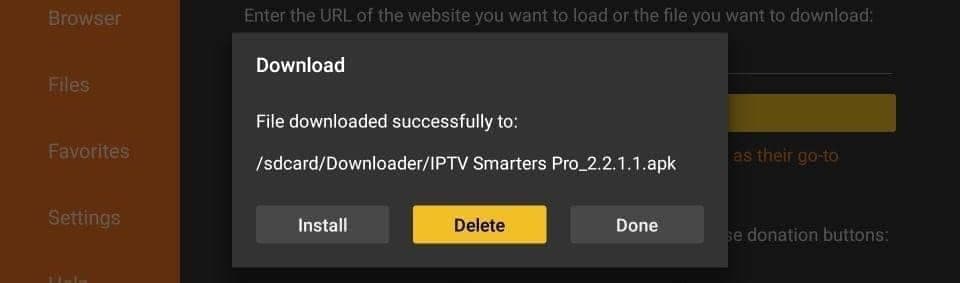
Select Delete, and confirm. Fire Sticks ship with very little storage and the leftover file is pure waste.
Low storage is the number one cause of a sluggish, stuttering Fire Stick. Clearing this file now saves a support call later.
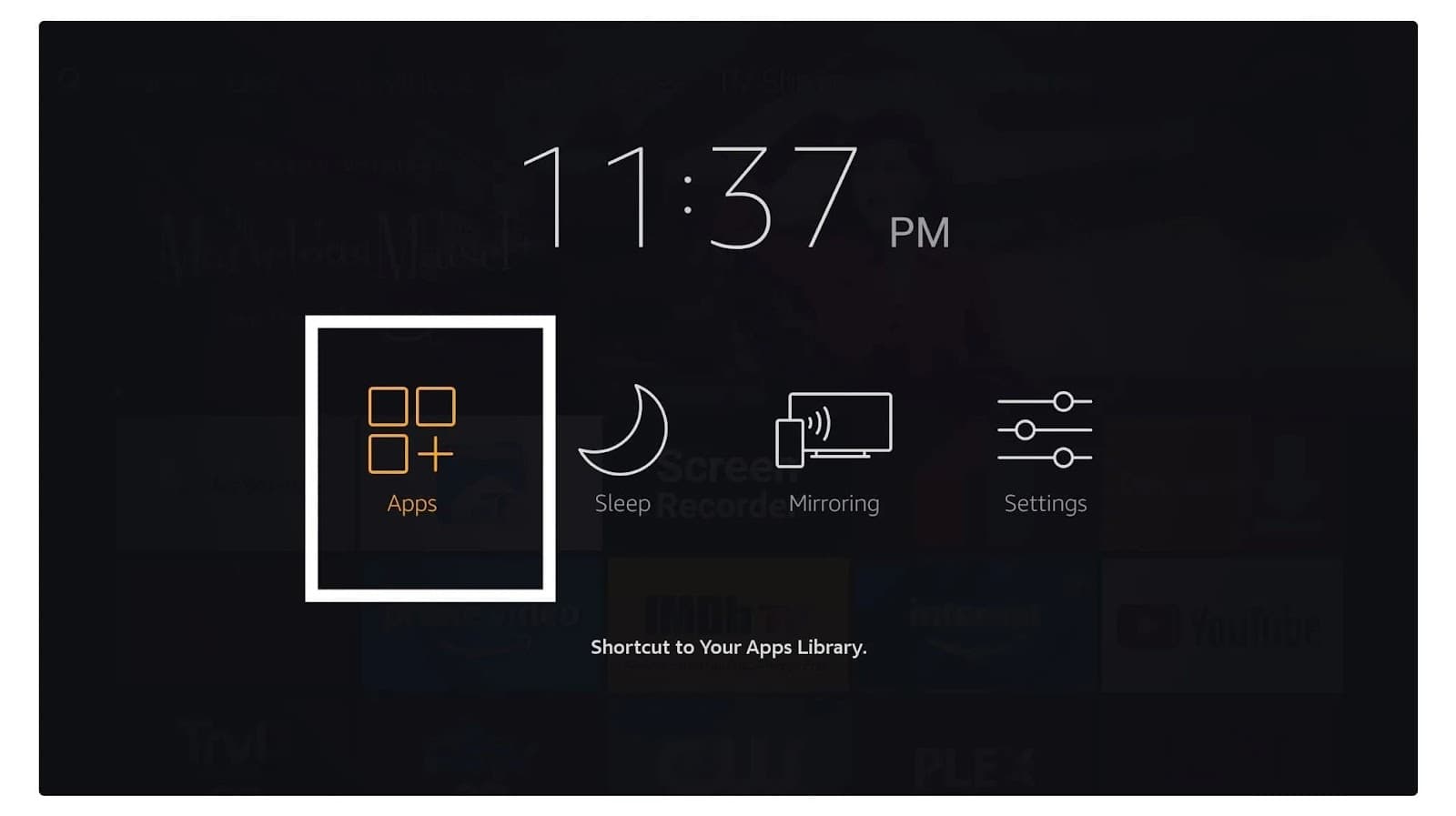
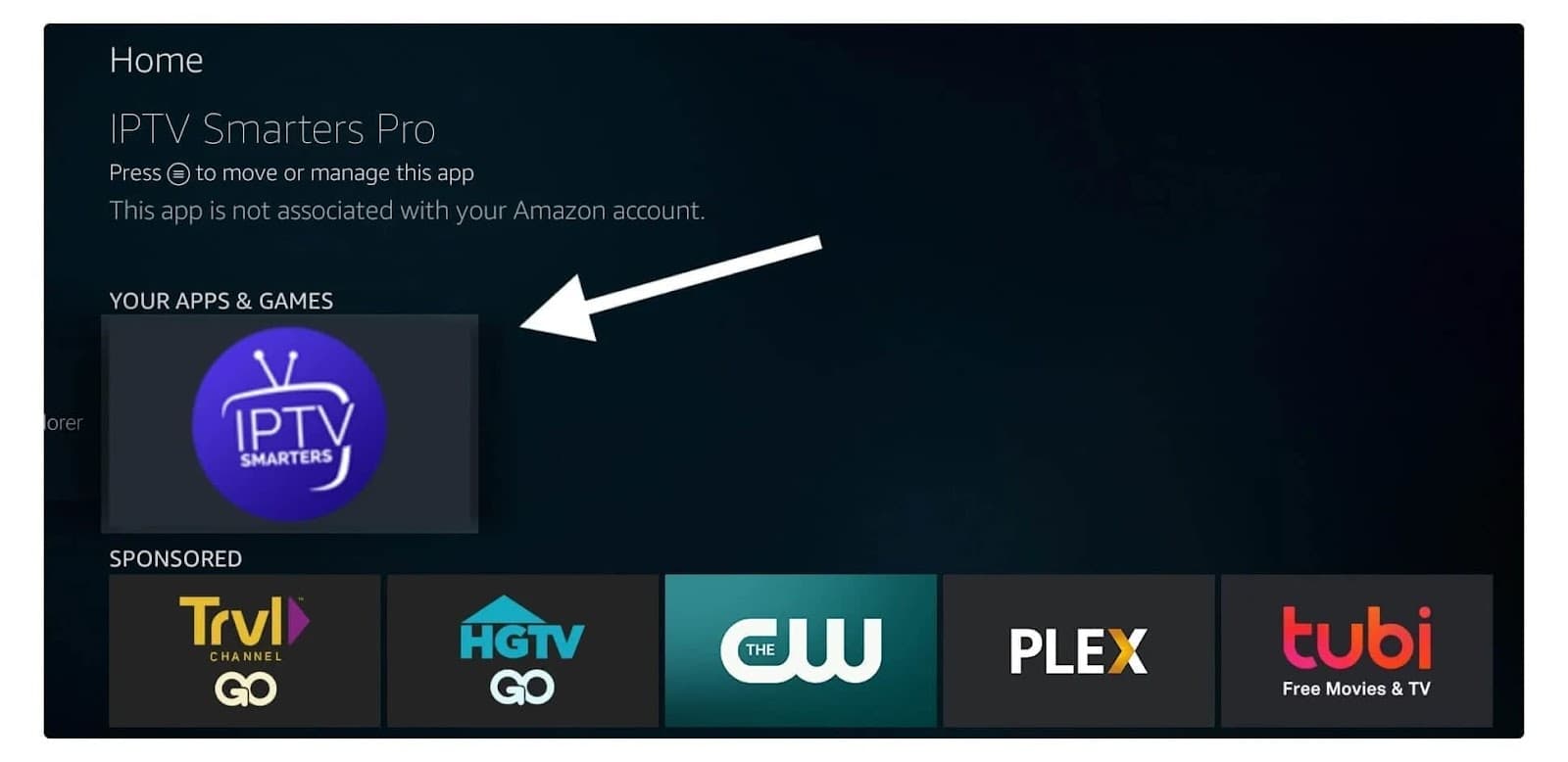
Press and hold the Home button and choose Apps, or scroll to Your Apps & Channels.
New apps land at the bottom of the list. Scroll down and open it. Move it to the front row while you are there — press the menu button and choose Move.
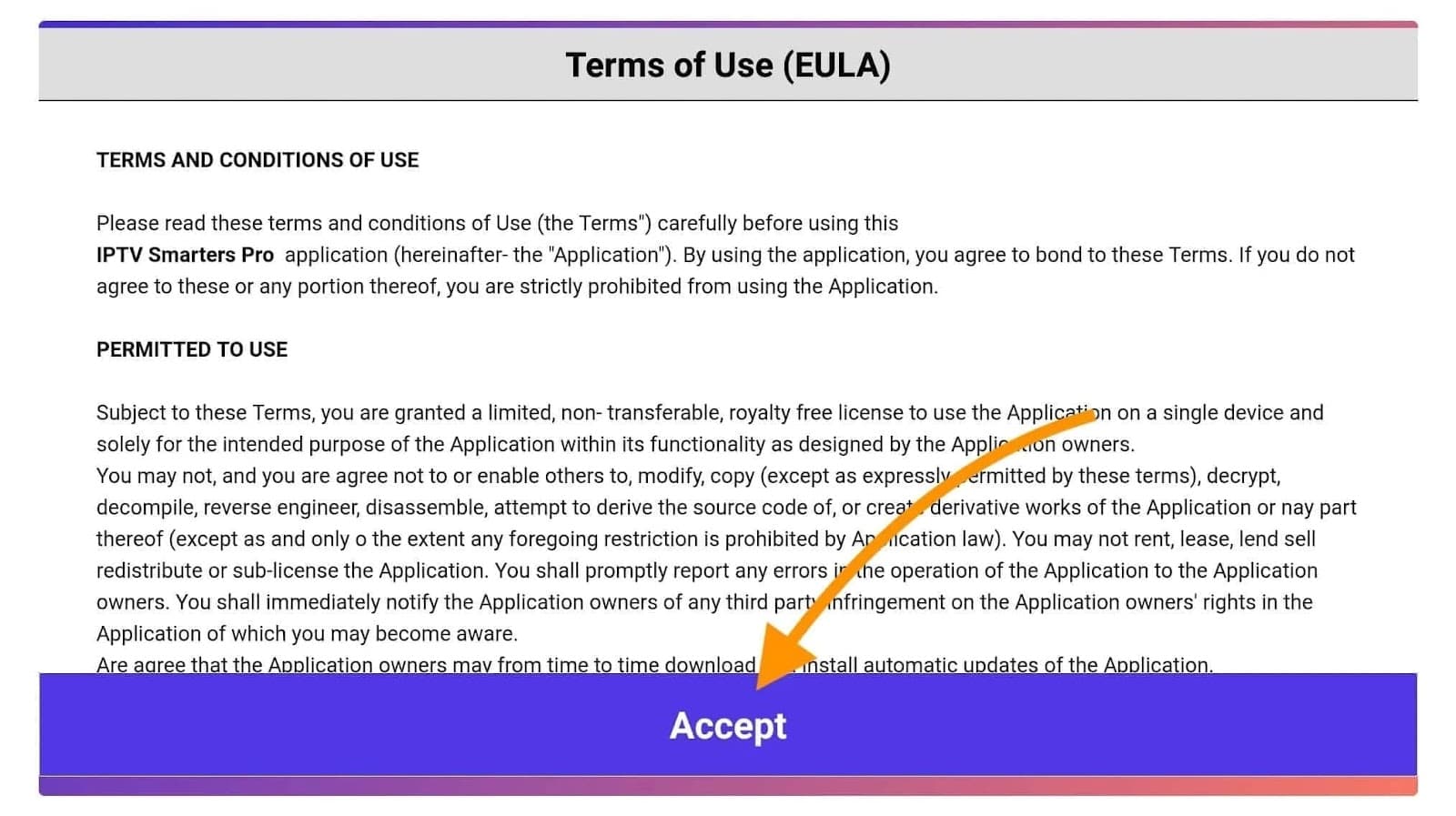
On first launch, accept the terms of use.
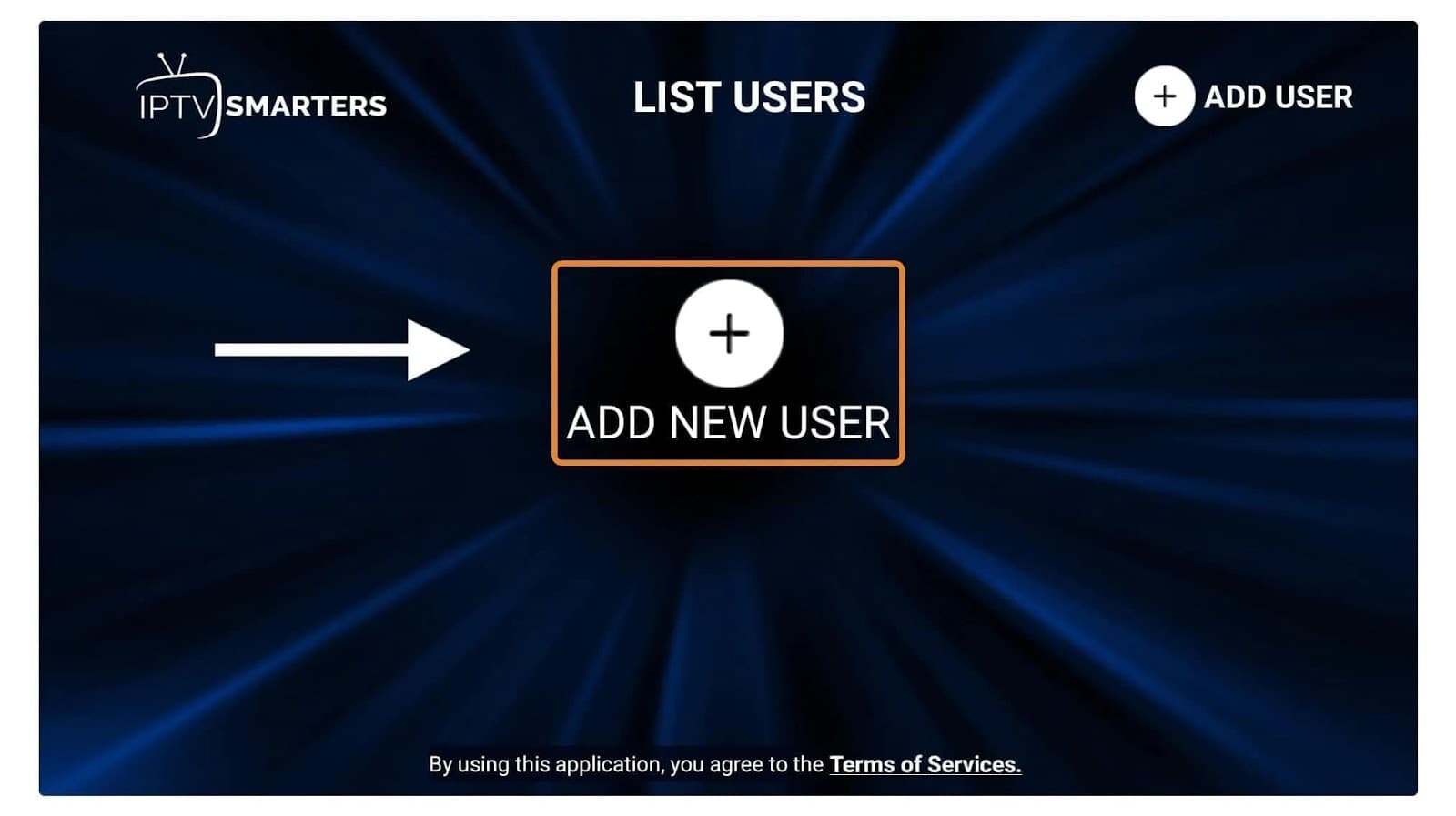
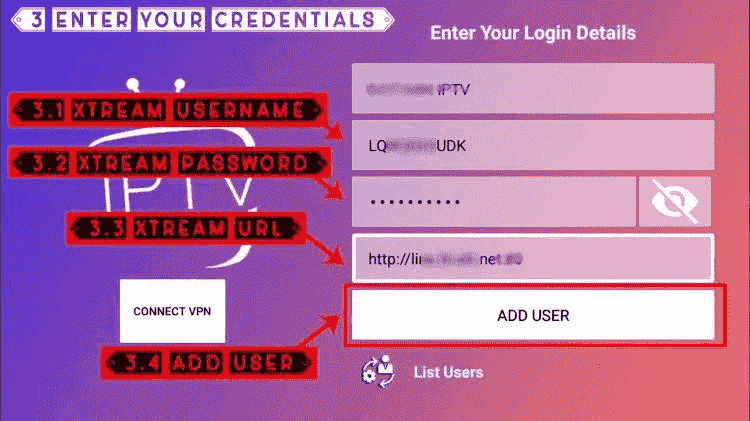
Select Add User to create your profile.
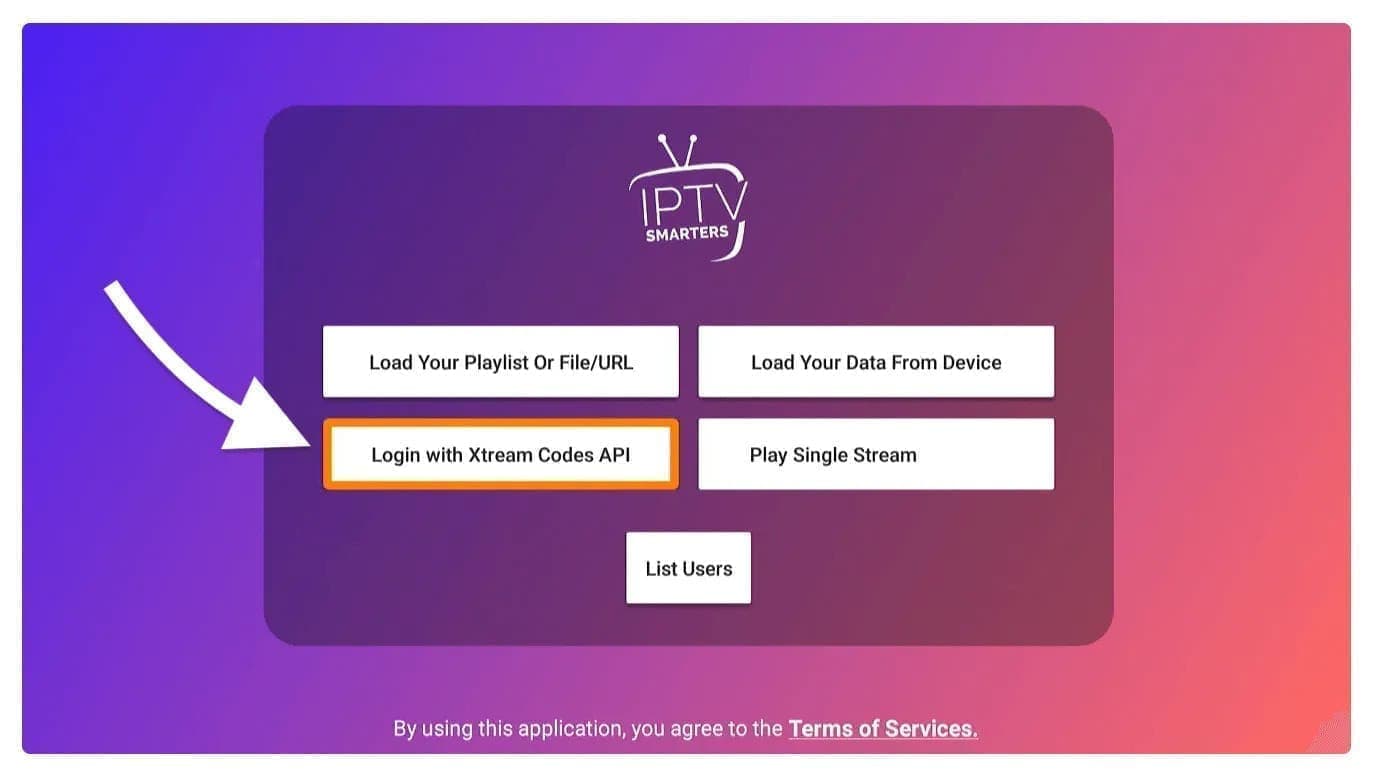
Of the options offered, choose Login with Xtream Codes API — it is the fastest and gives you the full guide.
Any name for the profile, then the username, password and server URL from your subscription email. Select Add User.
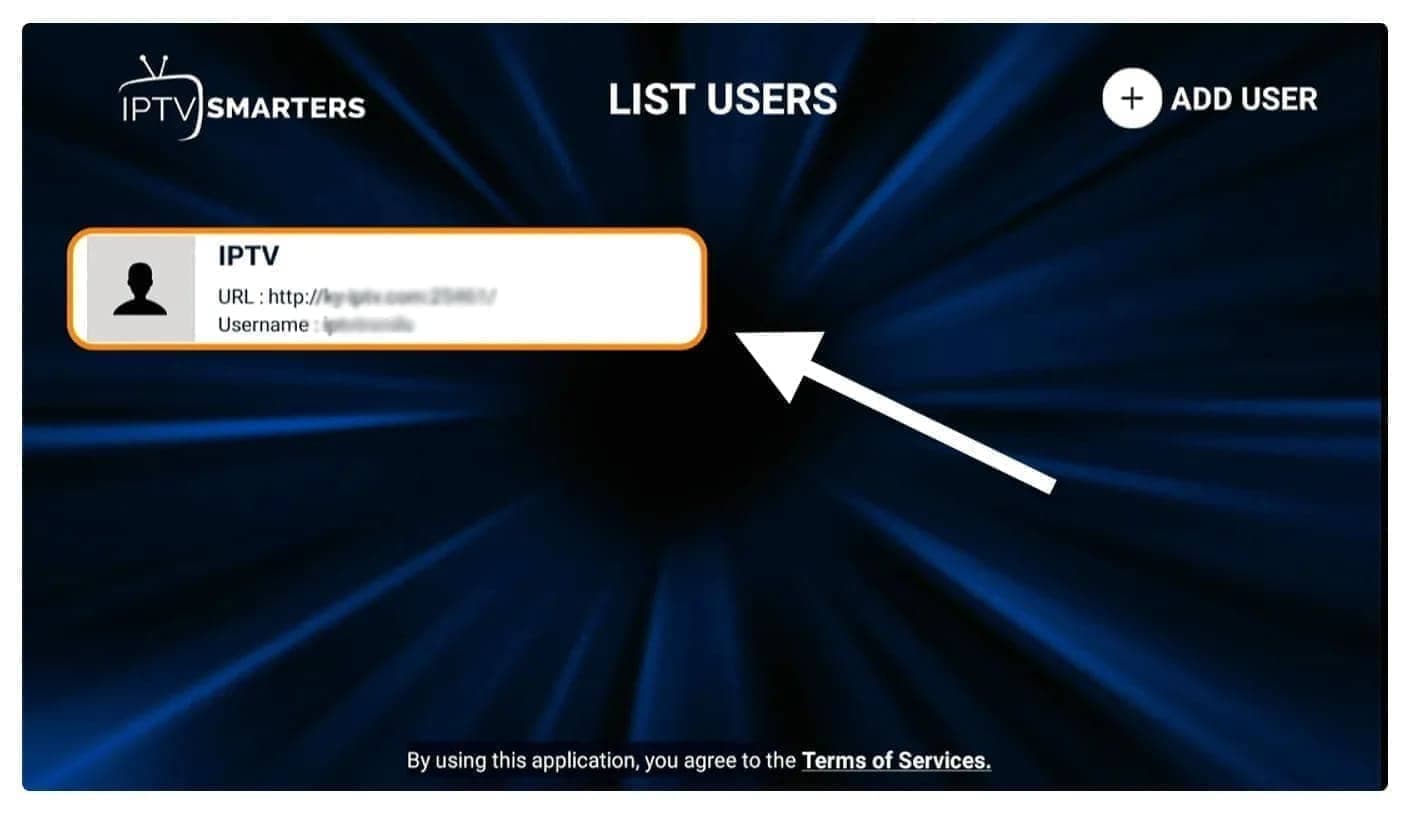
Your new user appears in the list. Select it.
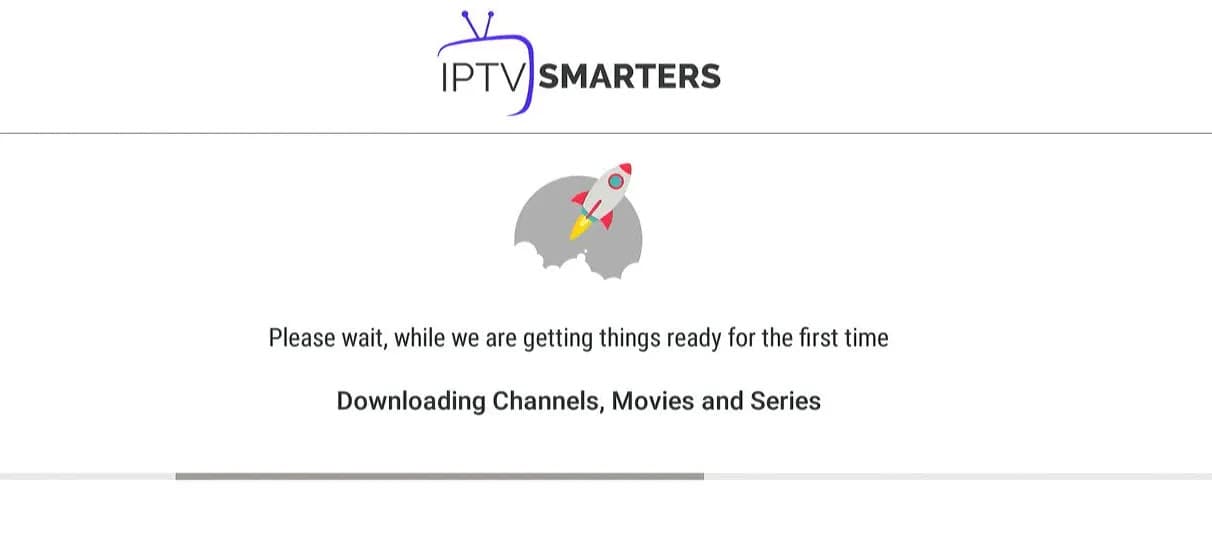
The screen reads "Downloading live channels, movies and TV shows". Give it a moment to finish and you are done.
Apple's App Store carries several IPTV players, so nothing needs side-loading. Smarters Player Lite is the cleanest; GSE Smart IPTV is the more configurable alternative and also runs on Mac and Apple TV.
The App Store build of the Smarters player. Same login as every other device.
Search the App Store for "Smarters Player Lite" and install it on your iPhone, iPad or Apple TV.
Launch it and you are asked for your details straight away.
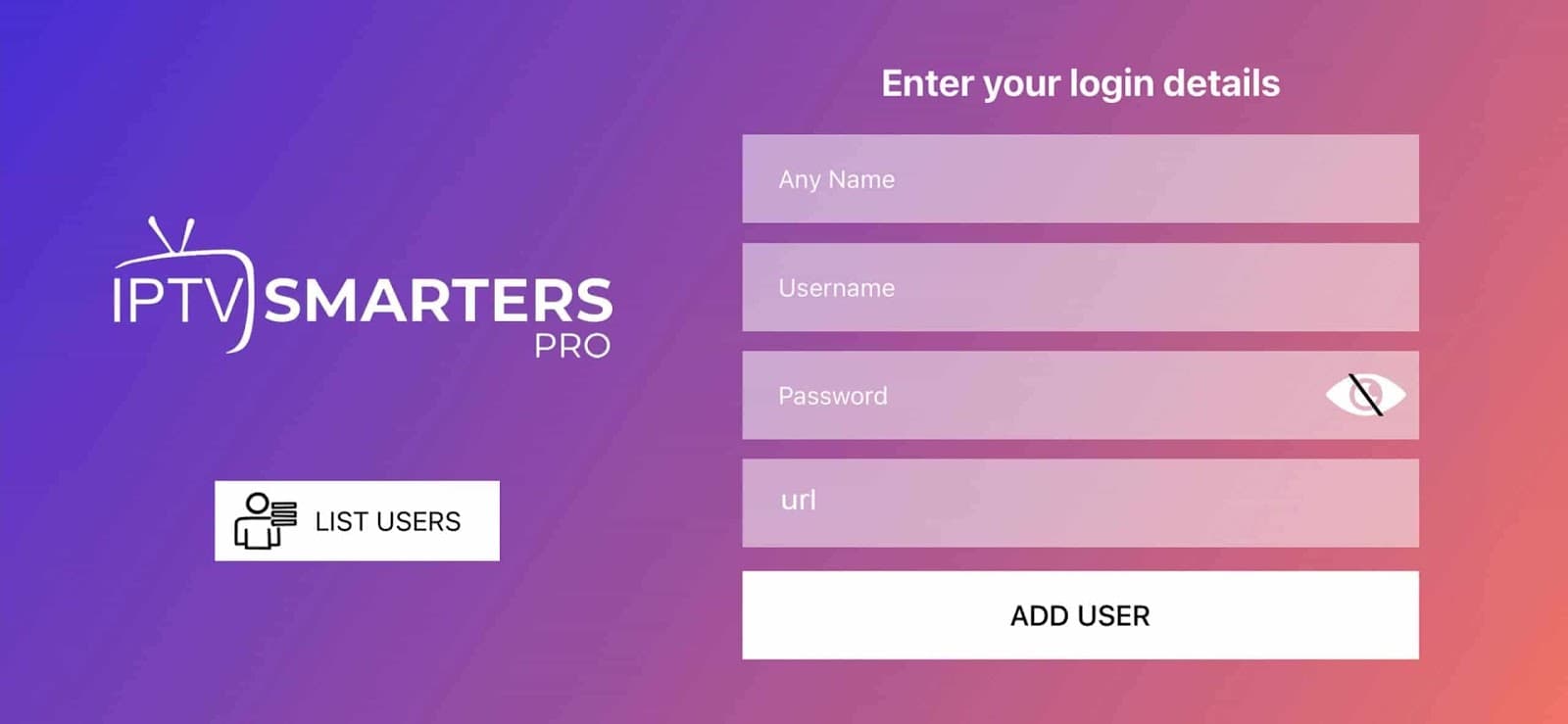
Type the username, password and server URL from your email, then tap Add User.
Paste rather than type. Long-press the details in your email, copy, and paste into each field.
Once the content has loaded, tap the Live TV icon to see your channels.
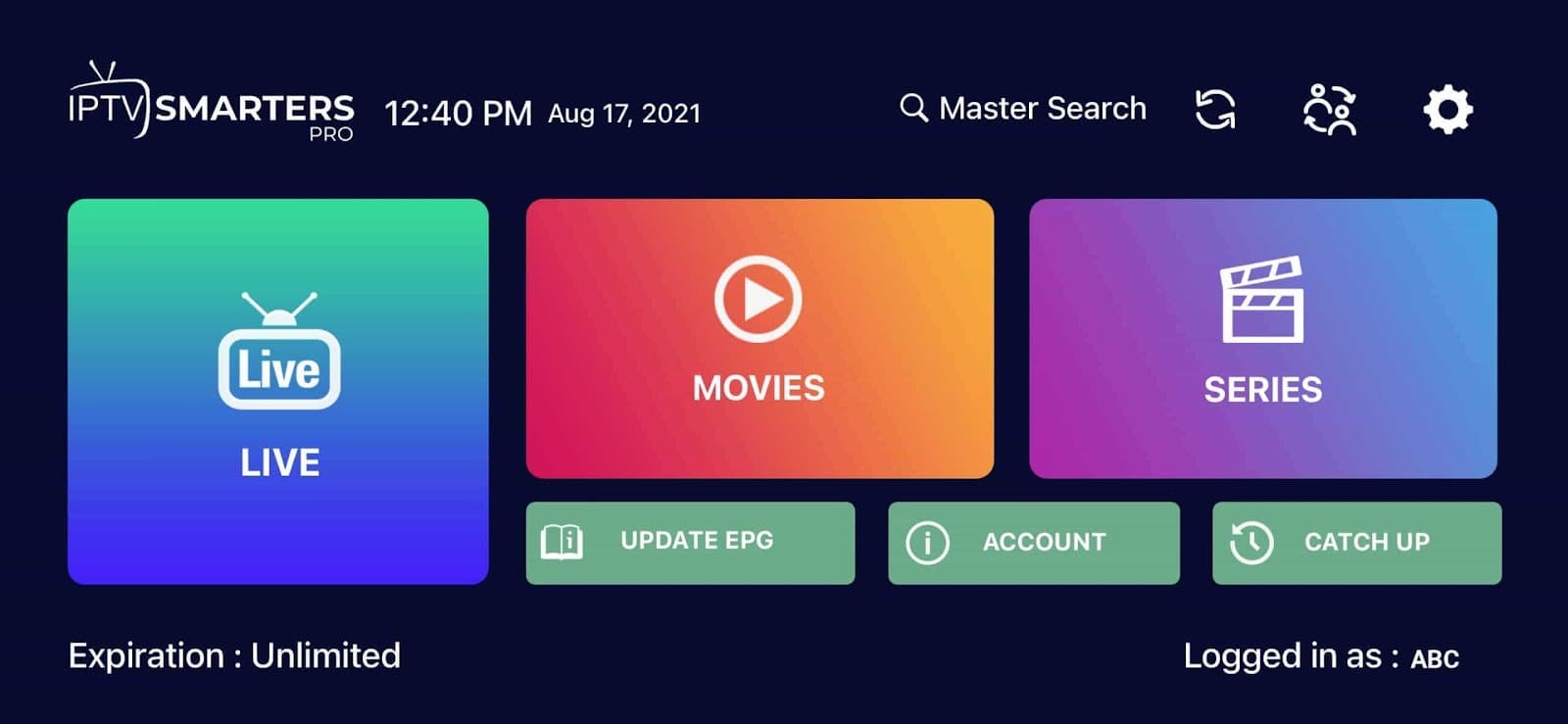
Choose a channel group, select a channel, and double-tap the small preview to go full screen.
To get the programme guide, simply choose "Install EPG" in settings — there is no separate EPG address to enter.
Runs on iPhone, iPad, Apple TV and macOS, with more settings for anyone who wants them.
Find it in the App Store and install it.
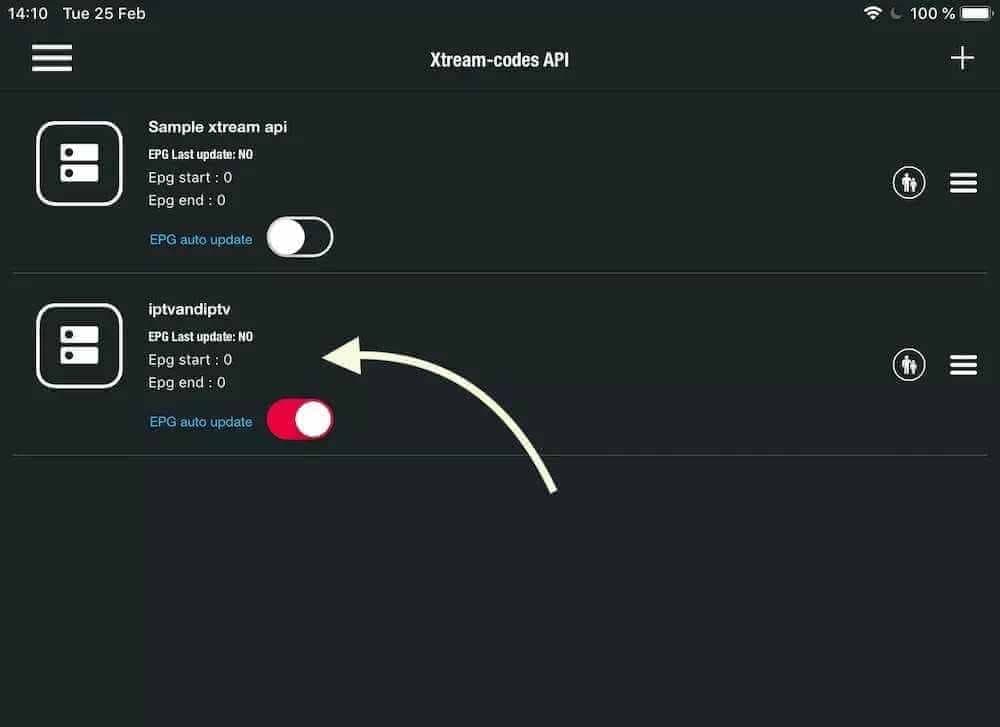
Open the side menu and choose the Xtream Codes API section.
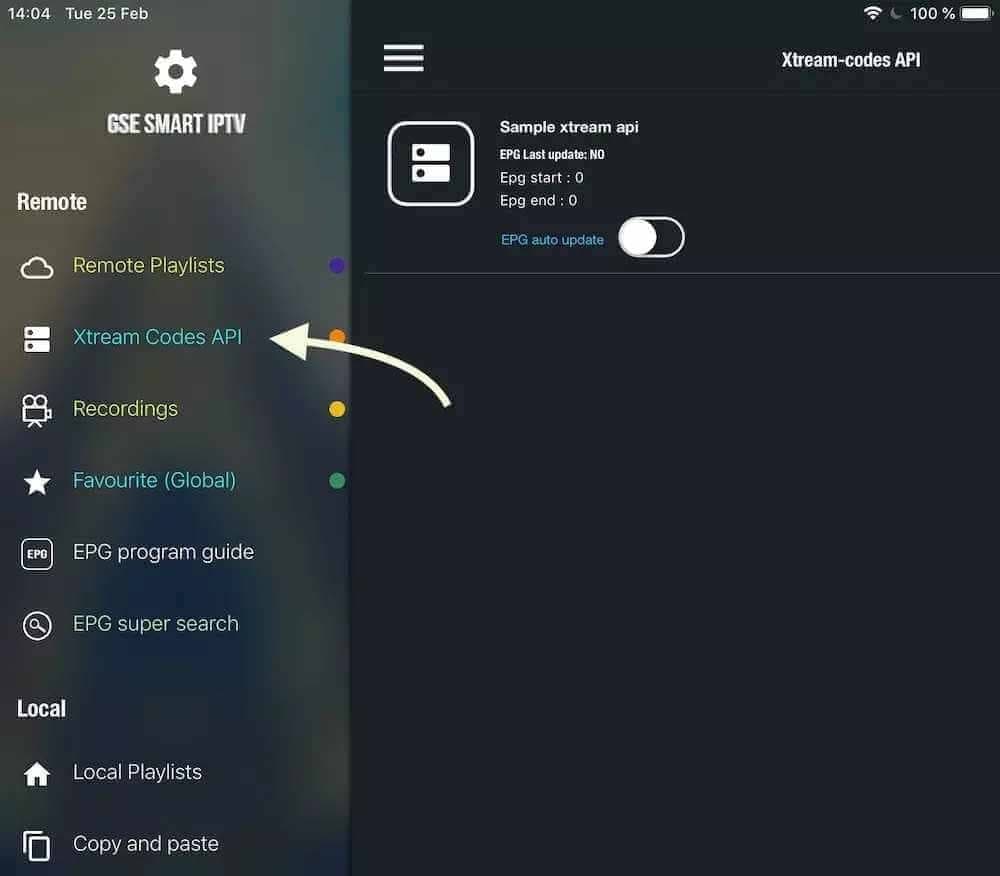
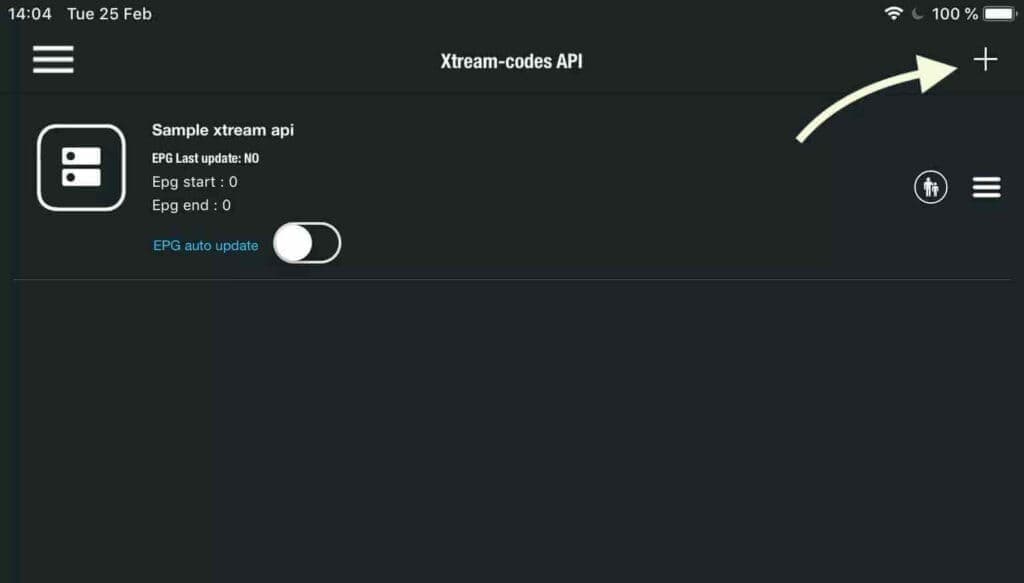
Tap the + icon to add a new Xtream Codes list.
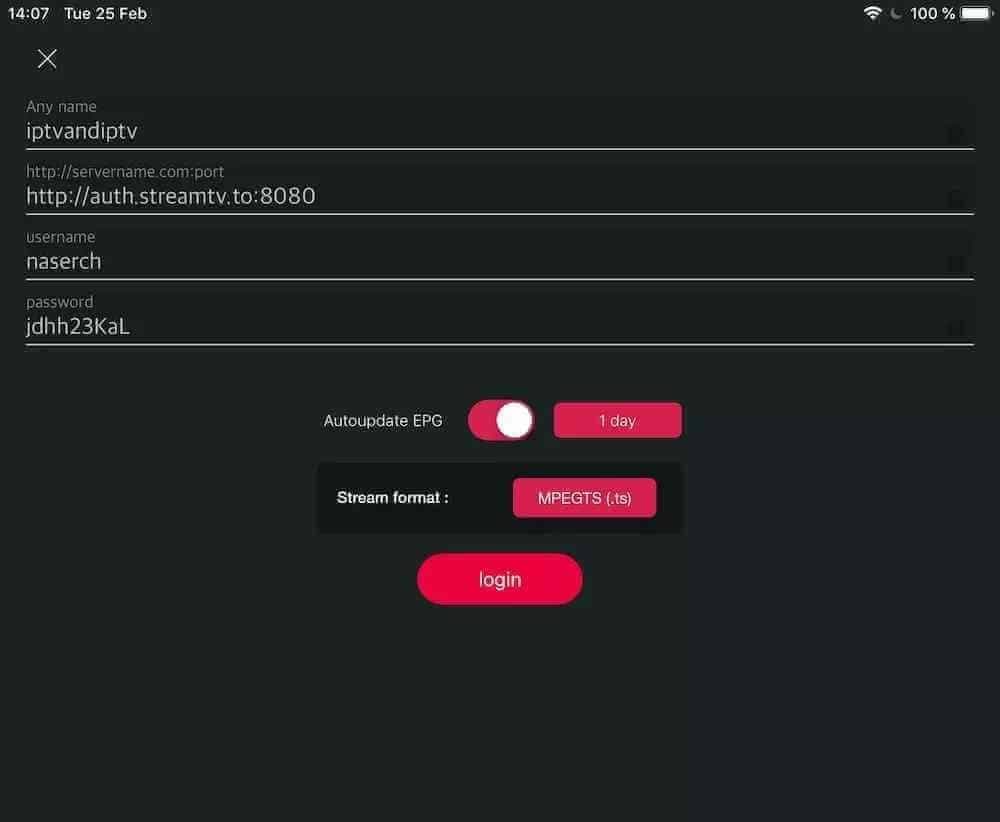
Name the list, enter your username, password and server URL, switch on automatic EPG updating, and tap Login.
Select the list you created to browse live channels, films and series.
Useful for testing your subscription the moment it arrives — a laptop is usually the fastest way to confirm the details work before you set up the television.
The desktop build of the same player, downloaded from the developer's own site.
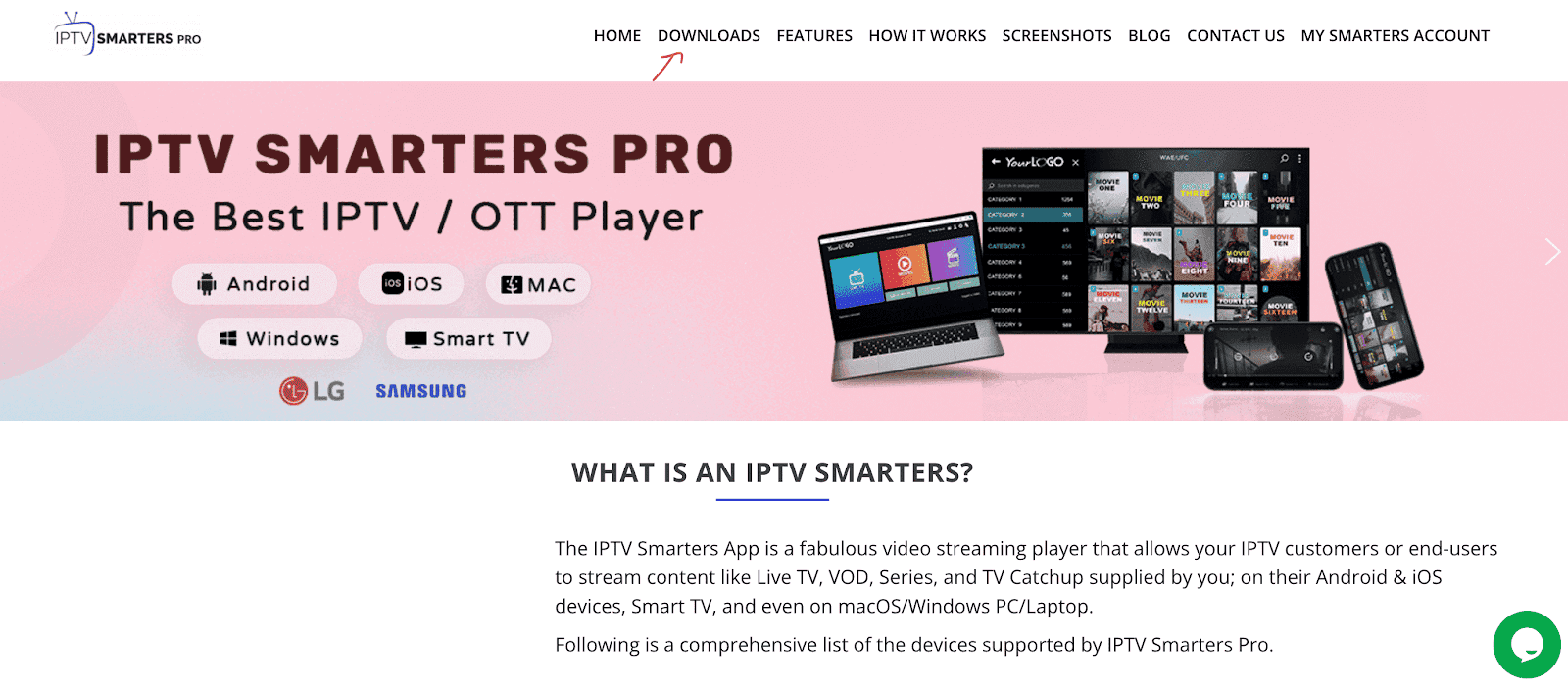
Open iptvsmarters.com in your browser.
Select Downloads from the site's menu.
Choose the current Windows release and save it.
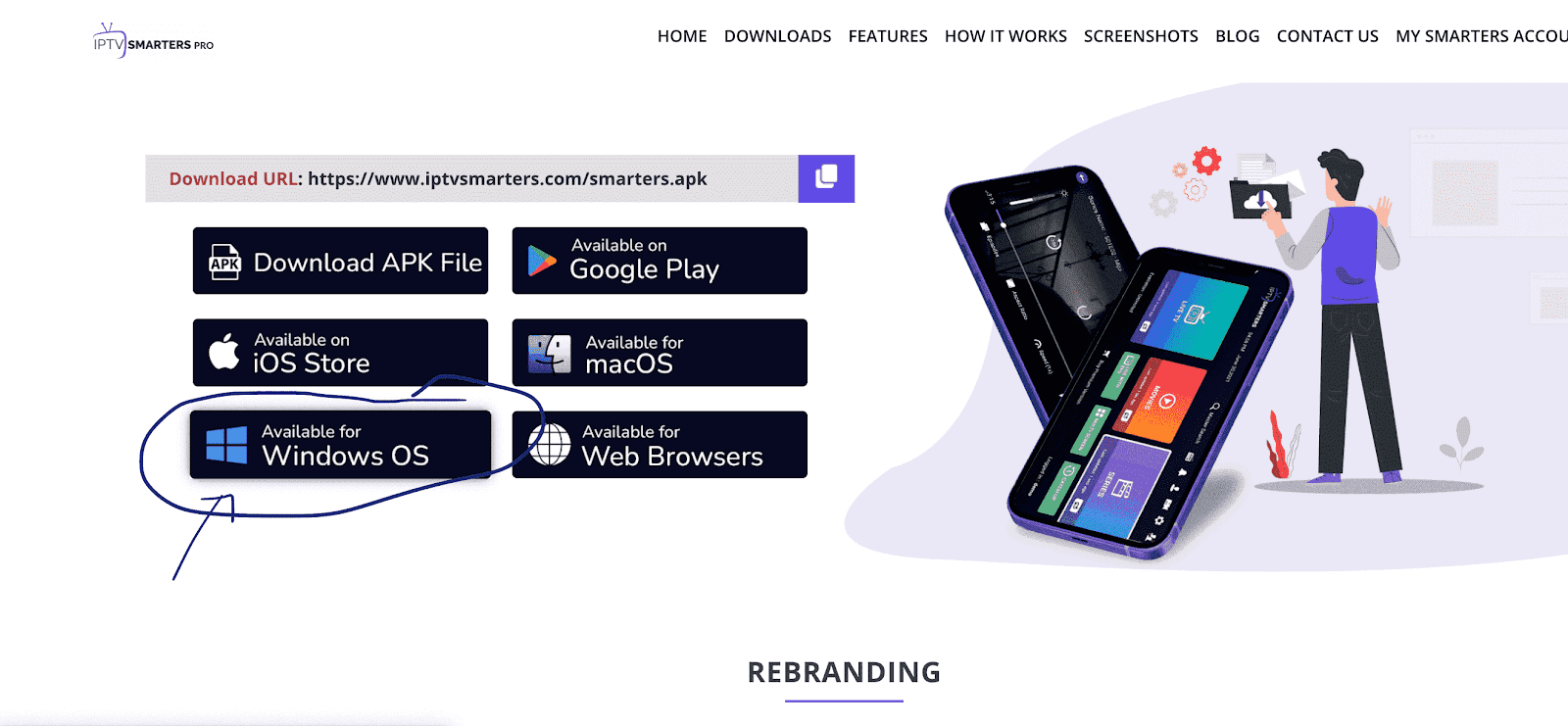
Open the downloaded file. Windows asks permission to run it — choose Yes. Installation takes a minute or two.
Windows SmartScreen may warn you about an unrecognised publisher. Choose More info, then Run anyway. This is normal for smaller developers without an expensive code-signing certificate.
Launch IPTV Smarters, click Add New User, choose Login with Xtream Codes API, and enter your username, password and server URL.
A Microsoft Store app that also runs on Xbox One — handy if the console is your main screen.
Search the Microsoft Store for "MyIPTV Player" and install it.
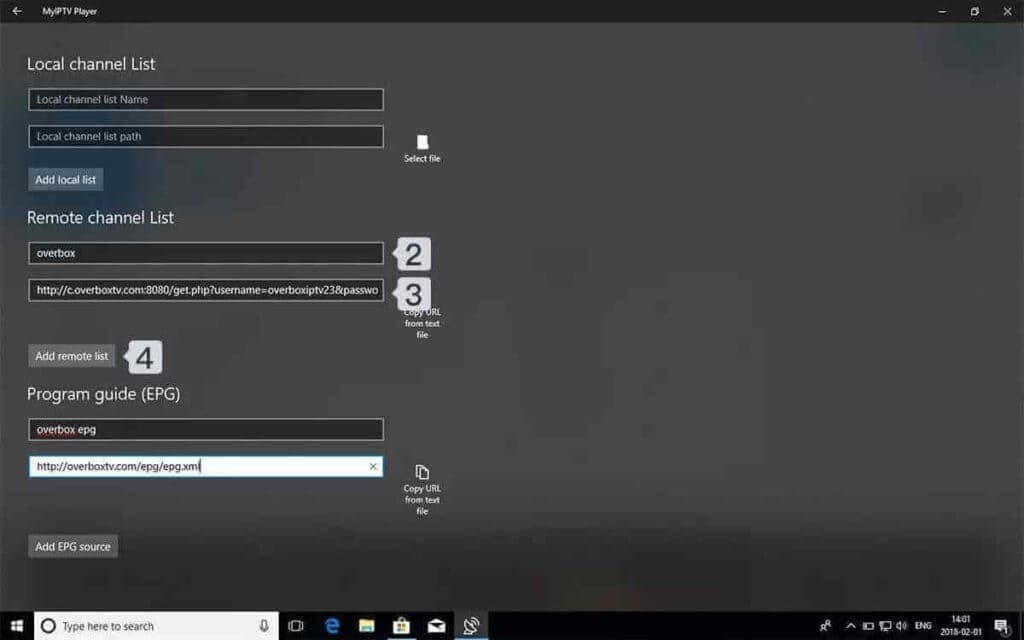
Go to the Settings tab and choose "Add new playlist and EPG source".
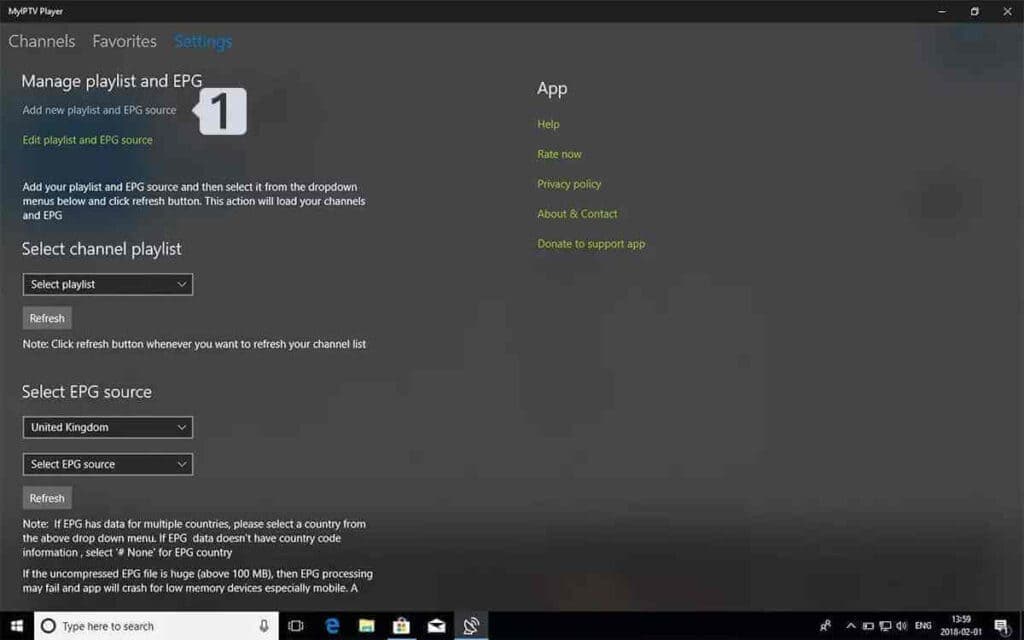
Give the list a name, paste the M3U link into the remote source URL field, and select Add remote list.
This app wants an M3U link rather than Xtream details. Ask us for yours — it is the same subscription, just a different format, and we send it on request.
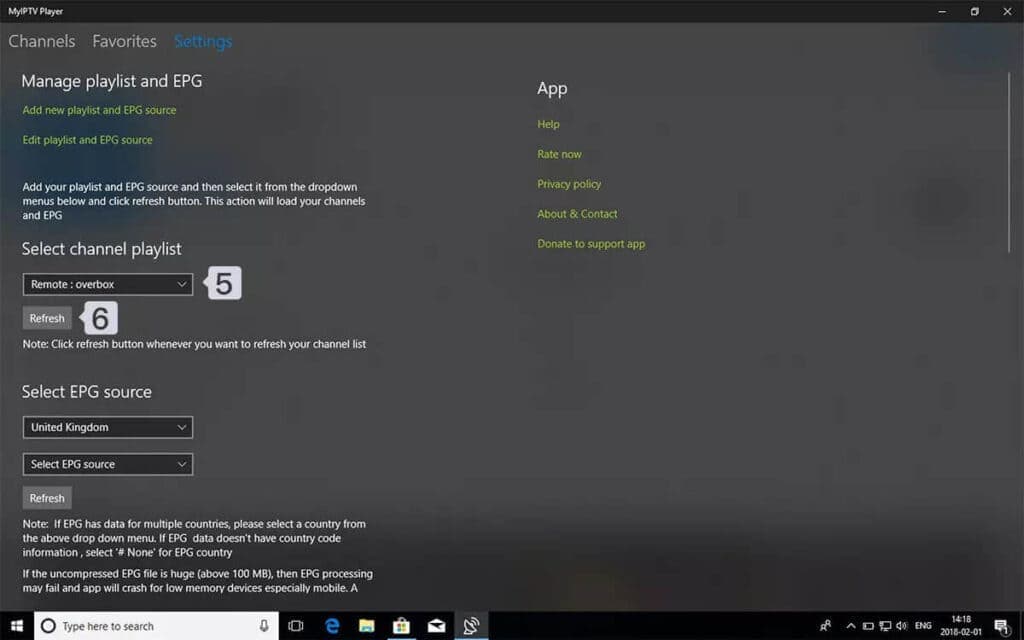
Back in Settings, pick your list from the channel selection dropdown.
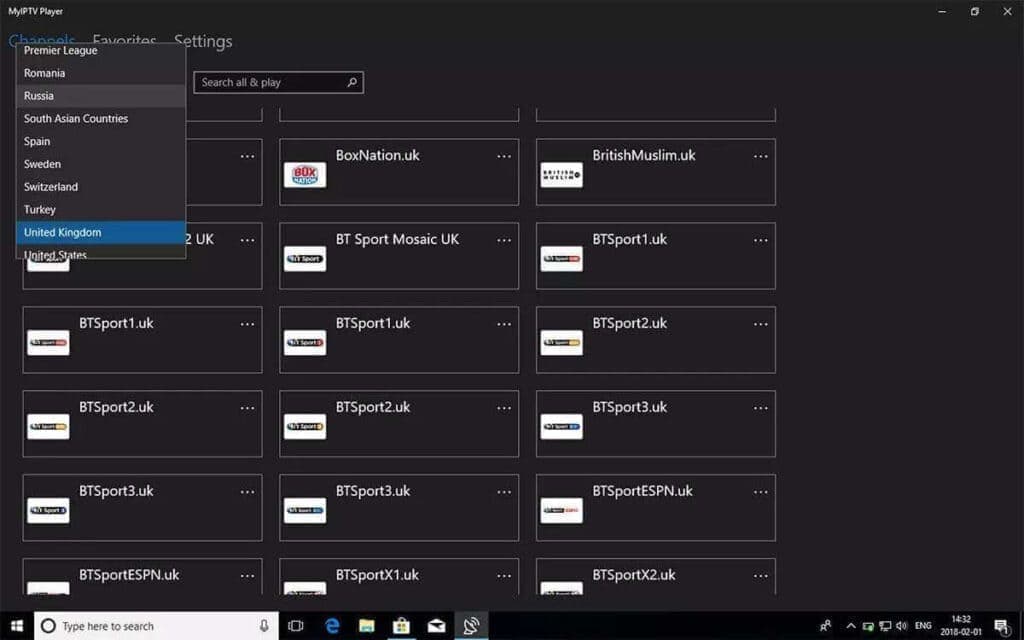
Open the Channels tab and choose a country to see the channels available in it.
MAG decoders (250, 254, 256, 322, 420 and similar) work differently to every other device here: there is no app and no username. We lock the subscription to the box's MAC address and you enter a portal URL.
Send us the MAC address from the sticker on the underside of the box before you start — nothing works until the line is registered against it.
Turn the box over and read the MAC address off the label — twelve characters in the form 00:1A:79:XX:XX:XX. Send it with your order. Activation is done remotely from our side, and we email you a portal URL once it is live.
This is the step people skip. A MAG box with no registered MAC shows an empty portal no matter how correctly the rest is entered.
While the box is loading, the main portal screen appears. Choose Settings, or press the SETUP/SET button on the remote.
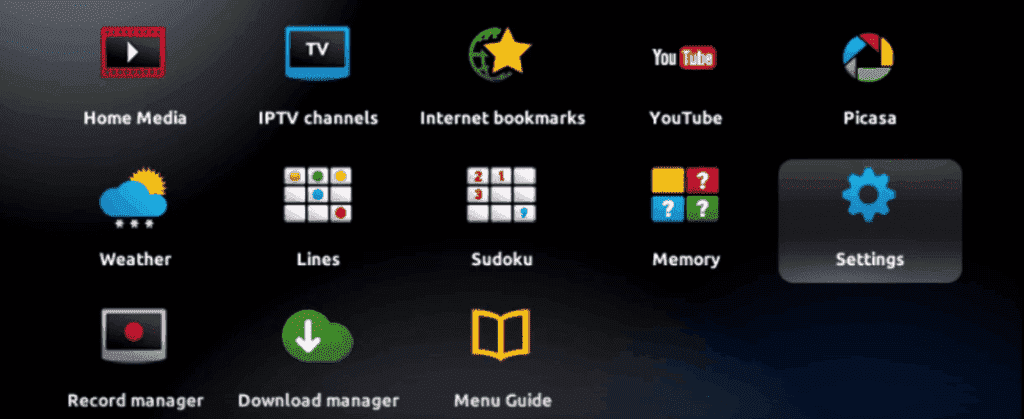
Open System Settings and look for Servers.
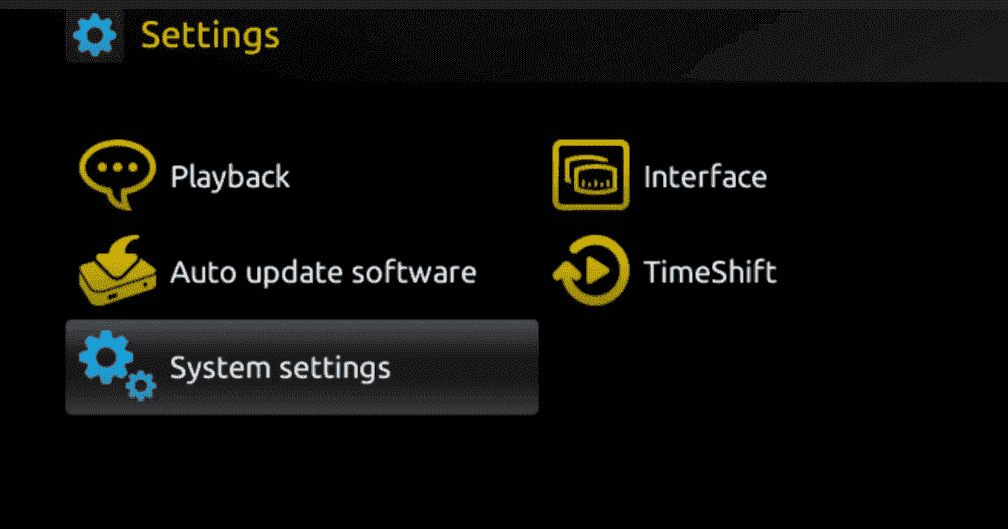
Select Servers.
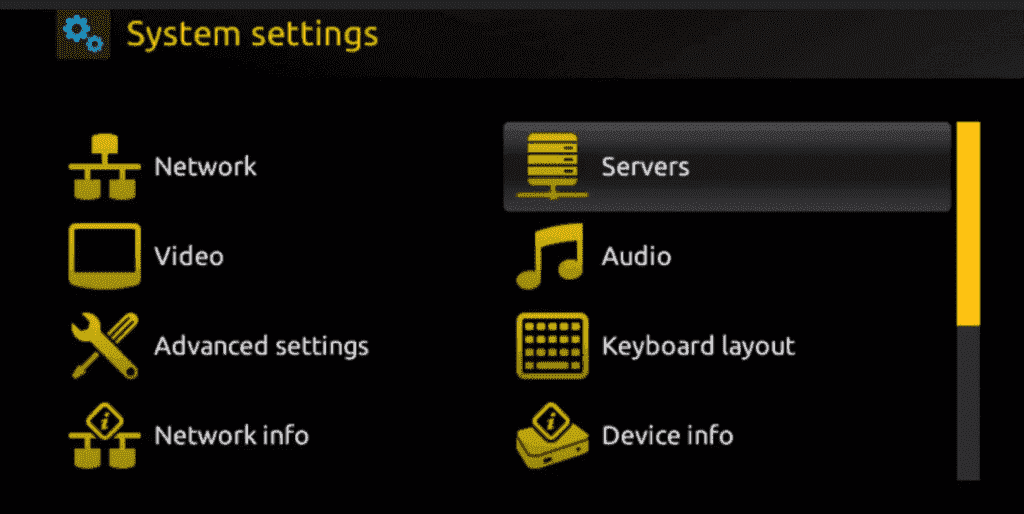
Select the Portals option.
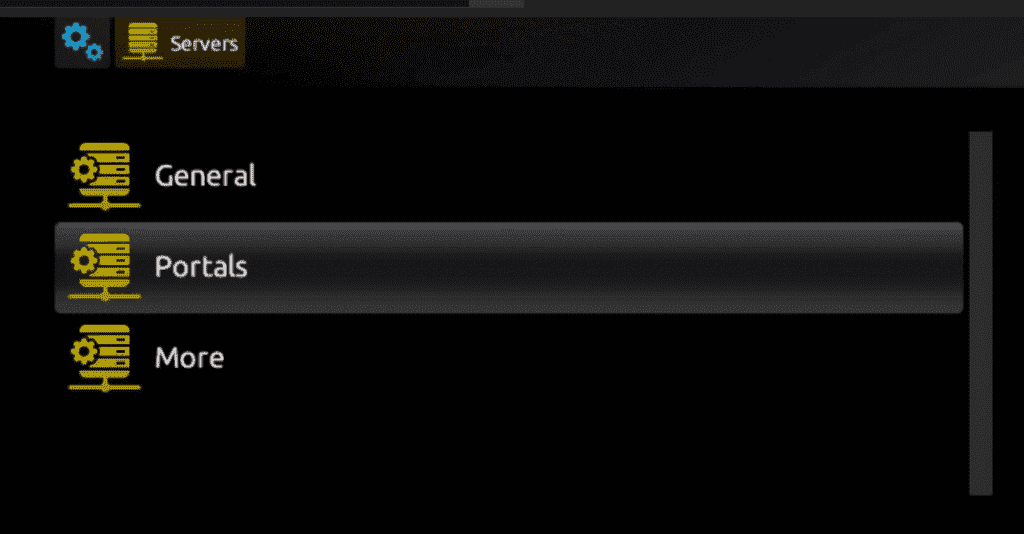
In Portal 1 Name type any name — IPTVPass will do. In Portal 1 URL enter the portal address exactly as we emailed it.
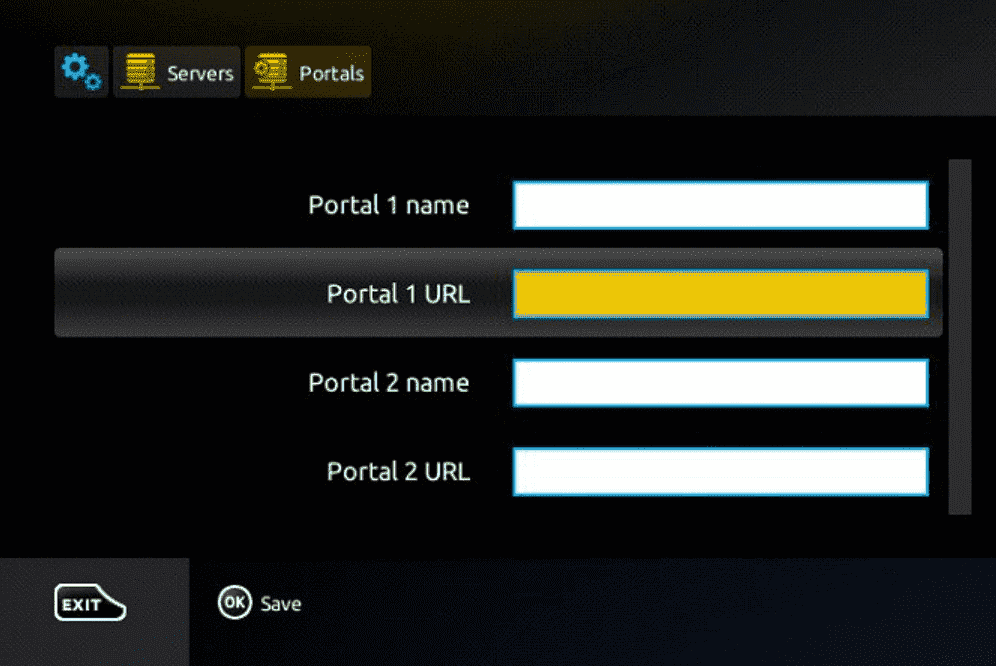
Select OK to save, press EXIT on the remote, then restart the box when prompted. It reboots into your channel list.
Formuler boxes — Z7, Z8, Z10, Z Nano and older models — ship with MyTV Online 2 already installed, so there is nothing to download. They accept both portal-style and Xtream logins.
The app that comes with the box. Update it first if it prompts you — older builds throw errors that look like login failures.
Use a LAN cable if you can. Formuler boxes are commonly used for sport, and a wired connection is the difference between a clean stream and a stutter at kick-off.
Open MyTV Online 2 and select Add Portal.
Enter a nickname in the Portal Nickname field — IPTVPass is fine.
Enter the portal URL we sent you, tick "Login required", and enter your username and password.
Select CONNECT. The box loads the portal, the channels, the video-on-demand library and the guide data. This can take a few minutes the first time — let it finish rather than restarting.
Roku is the most awkward device on this page. IPTV players are not in the official channel store, so the app is added as a private channel and installed from a computer on the same network. Doable, but if you have not bought hardware yet, a Fire Stick or an Android box will save you an evening.
Three stages: unlock developer mode on the Roku, add the channel to your account, then push the package from a computer.
With the Roku on screen, press this sequence on the remote: Home ×3, Up ×2, Right, Left, Right, Left, Right. The Development Options menu appears.
Write down the IP address shown on that screen — you need it from your computer shortly.
Choose "Enable installer and restart", accept the licence agreement, then create a web server password. Write it down; you cannot recover it later. Select "Set password and restart".
On a computer, sign in at my.roku.com. Under Manage your account choose "Add channel with a code", type iptvsmarters exactly, and add it. Confirm the warning and choose "Yes, add channel".
Still on the computer, download the IPTV Smarters Roku package and save it somewhere you can find again — the desktop is fine.
We can send you the current package link on WhatsApp. Roku packages move around, and a stale link is the usual reason this step fails.
In your browser, enter the Roku's IP address. Sign in with the username rokudev and the web server password you set. Choose Upload, select the package, and click Install.
Go back to the Roku. IPTV Smarters is now on your channel list — open it and enter your username, password and server URL.
15 problems our support team gets asked about most, each with the likely cause and the fixes in the order worth trying. Most are solved in under two minutes without messaging anyone.
Nine out of ten complaints land here, and nine out of ten of those are the network rather than the stream.
Most likely cause: Almost always local bandwidth or Wi-Fi, not the server.
Most likely cause: Peak-time load on a specific channel, usually at kick-off.
Most likely cause: A player-side decoding lag, not a broken stream.
Most likely cause: You are on the SD copy of the channel, or the app is capping quality.
If the app refuses you, the answer is nearly always in the detail you typed or the number of devices already connected.
Most likely cause: A typing error, nine times out of ten.
Most likely cause: The subscription is already streaming somewhere else.
Most likely cause: Usually expiry, occasionally a network-level block.
The content is there but the app is showing you a stale copy of it.
Most likely cause: The playlist downloaded before the line was fully active, and got cached empty.
Most likely cause: The EPG has not downloaded, or the device time zone is wrong.
Most likely cause: The line-up changed, or the channel moved category.
Most likely cause: Video-on-demand is more bandwidth-hungry at the moment of loading than live TV.
When the app itself is the thing misbehaving.
Most likely cause: Samsung and LG add and remove IPTV players regularly.
Most likely cause: Storage. Fire Sticks ship with very little and fill quickly.
Most likely cause: Load shedding. The router comes back before the fibre or the tower does, so devices reconnect to a line that is not ready.
Most likely cause: No. The subscription follows you, not the hardware.
Send us a message with your device, the app you are using and what you see on screen — a photo of the TV is perfect. Our support team is in South Africa and answers around the clock, usually within a few minutes.
Message support on WhatsAppWritten and maintained by The IPTVPass support team. Last reviewed 10 August 2026. App interfaces change — if a screen looks different to a screenshot here, message us and we will update it.